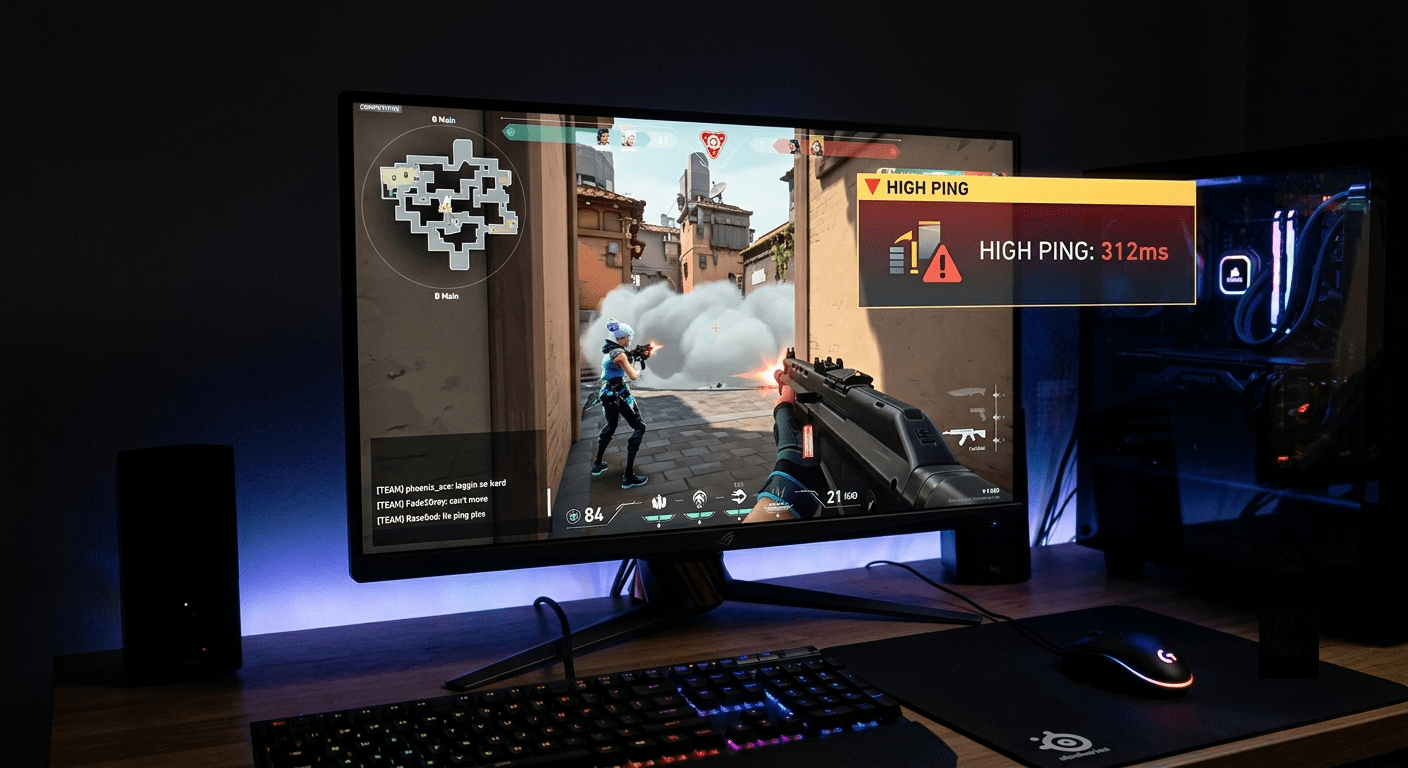
High ping in Valorant is not just annoying it is genuinely game-breaking. You peek a corner cleanly, click the head perfectly, and still die because your packets arrived late. The enemy is already gone. Your shot registered on an empty wall. High ping turns a skill game into a lottery, and it does not discriminate between ranked and unranked.
The good news is that most high ping problems in Valorant are fixable. Here is every solution that works, why it works, and exactly how to do it.
What High Ping Actually Means
Ping is the round-trip time for data to travel from your PC to Riot’s servers and back measured in milliseconds. When a VPN helps: your ISP routes your traffic through congested intermediate nodes, your ISP throttles gaming traffic during peak hours, or your ping spikes in the evening but is fine during the day. When it does not: your base ping is already under 20ms with no jitter.
Here is the honest ping benchmark for Valorant:
| Ping Range | Experience | Competitive Impact |
|---|---|---|
| 0 to 20ms | Ideal | Zero noticeable delay |
| 20 to 50ms | Good | Barely noticeable |
| 50 to 100ms | Playable | Slight delay on fast peeks |
| 100 to 150ms | Poor | Noticeable rubberbanding |
| 150ms and above | Unplayable | Shots feel delayed, abilities lag |
Before trying any fix, identify your current ping. Open Valorant, go to Settings, Video, Stats, and enable Network Round Trip Time. That number stays on screen during matches so you know exactly when spikes happen and whether your fixes are working.
The Fixes, Every Solution Rated and Explained
Fix 1: Check Riot Server Status
Always do this first before changing a single setting on your end. If Riot’s servers are having an outage, no local fix will help. Check the official Riot Games server status page directly if there is a red or yellow status for your region, the problem is on their end and your only option is to wait.
If Riot Service Status shows an incident or many players report the same region issue, wait before changing local settings. If only your connection is affected, test Ethernet, router, background traffic and tracert logs.
This takes 30 seconds and saves you from wasting an hour fixing a problem that is not yours.
Fix 2: Select the Nearest Game Server
Valorant lets you manually pick your server and the default is not always the best one. In the client, click the flag icon near your name at the top of the main screen. A server selection menu appears with ping readings for each available data centre. Pick the one with the lowest number.
The distance your data physically travels determines a floor on your ping that no software fix can beat. Select the wrong region by accident or have it set to auto on a bad day and you could be routing to a server twice as far away as necessary. Check this every time your ping feels unusually high.
Fix 3: Switch from Wi-Fi to Ethernet
This is the single highest-impact fix for most players and it costs nothing if you already have a cable. Wi-Fi connections can suffer from interference, leading to delays and packet loss. By connecting your device directly to the router with a LAN cable, you can establish a more stable connection and lower your ping.
Using Ethernet instead of Wi-Fi reduces ping by 5 to 15ms and produces a major jitter reduction. Jitter the variance in ping rather than the average is what causes the sudden spikes that feel worse than consistently high ping. An Ethernet cable eliminates almost all jitter caused by wireless interference.
If you physically cannot run a cable, a Powerline adapter uses your home’s electrical wiring to create a wired connection without drilling holes or running cables across rooms. It is not as clean as direct Ethernet but dramatically outperforms Wi-Fi for gaming stability.
Fix 4: Restart Your Router and Modem
Routers accumulate routing table corruption over time a restart clears it completely. Restarting both Valorant and the Riot Client is a simple and quick solution to clear temporary glitches and errors. The same applies to your router. Turn it off for 10 to 15 seconds, then turn it back on.
This is especially effective if your ping is normally fine but has been elevated for several days without an obvious cause. Your router’s internal routing tables get stale, its DNS cache gets bloated, and a full restart resets everything to a clean state. Takes two minutes and fixes a surprising number of persistent ping problems.
Fix 5: Close Background Downloads and Apps
A downloading game update or streaming upload running in the background will spike your Valorant ping directly and measurably. Pending updates might be downloading in the background and causing ping issues in-game. Check the Windows update menu. Check Steam, Epic, and any other game launcher for active downloads.
Close or pause these before every ranked session:
Windows Update downloading silently in the background. Steam or Epic Games updating any installed game. OneDrive, Google Drive, or Dropbox syncing files. Any browser tabs playing video even paused YouTube holds a connection open. Discord video calls or screen shares consuming upload bandwidth.
The rule is simple: if it uses the internet, close it before you queue into ranked.
Fix 6: Stop Streaming Apps
Streaming services consume significant upload bandwidth even when you are watching, not streaming. Other recommended practices include pausing downloads, stopping streaming services, and keeping the router in an open area. Netflix, YouTube, Spotify, and Twitch all maintain active network connections that compete with Valorant for bandwidth and can cause ping spikes on shared or slower connections.
This matters most on connections below 50Mbps or when multiple household members are online simultaneously. Close streaming apps completely rather than pausing them a paused stream often maintains its connection in the background.
Fix 7: Try a Gaming VPN for ISP Routing Issues
Here is the scenario where a VPN actually helps rather than hurts and it is more common than most players know. Some internet service providers throttle gaming traffic during peak hours or route data inefficiently, causing high ping even on fast connections. A gaming-optimised VPN can bypass these routing problems by creating a direct, optimised path to Riot’s servers.
When a VPN specifically fixes high ping:
Your ping is fine in the morning but spikes every evening between 7 and 10PM. Your internet speed test is fast but Valorant ping is high. A traceroute shows multiple congested hops between your ISP and Riot’s AWS servers.
In testing during 2026, the best gaming VPNs added only 3 to 8ms of overhead on nearby servers while reducing jitter by 15 to 30 percent during peak evening hours a net improvement for players whose ISP routing degrades at night.
NordVPN is the VPN the gaming community keeps coming back to for this specific use case. NordVPN operates over 7,000 servers globally, uses the NordLynx protocol built on WireGuard the fastest protocol available for real-time gaming and consistently delivers lower added latency than competing services. For Valorant specifically, connect to a NordVPN server geographically close to the nearest Riot data centre for your region. The routing optimisation it provides around ISP congestion is real and measurable on affected connections.
Try NordVPN for better gaming experience with fast and secure connection without compromising your identity.
Fix 8: Enable QoS on Your Router
Quality of Service (QoS) is a router setting that prioritises gaming traffic above everything else on your network. Enabling QoS on your router prevents ping spikes when the network is shared. When multiple devices are online simultaneously, QoS ensures Valorant packets move first ahead of your flatmate’s YouTube stream or your phone’s background app updates.
How to enable it: Log into your router admin panel (usually at 192.168.1.1 or 192.168.0.1 in your browser). Look for QoS, Traffic Priority, or Gaming Mode settings. Add Valorant or your gaming PC’s IP address to the high-priority list. Save and restart the router.
The exact menu varies by router brand Netgear calls it QoS, ASUS calls it Adaptive QoS, TP-Link calls it QoS or Bandwidth Control. Your router’s manual will confirm the exact location.
Fix 9: Update Network Drivers
Outdated network adapter drivers are a hidden cause of latency spikes that most players never check. Outdated, damaged, or incompatible network adapter drivers can cause high latency and high ping issues in the game. Make sure your drivers are up to date by visiting your motherboard or network adapter manufacturer’s website.
How to update them:
Open Device Manager in Windows. Expand Network Adapters. Right-click your Ethernet or Wi-Fi adapter. Click Update Driver. Select Search Automatically.
If the automatic search finds nothing, visit your motherboard manufacturer’s website directly Intel, Realtek, and Killer Networking all release driver updates more frequently than Windows Update delivers them. Download the latest version from the source and install manually.
Fix 10: Restart Valorant and Your PC
Restarting the game and PC clears memory leaks, refreshes network connections, and resolves temporary glitches that cause ping spikes. Restarting both Valorant and the Riot Client is a simple and quick solution to clear temporary glitches and errors that may prevent the game from running correctly. This is especially useful if you are facing high ping after an update.
Close both Valorant and the Riot Client completely. Wait 30 seconds. Relaunch the Riot Client. Let it update if needed. Launch Valorant fresh.
A full PC restart is more effective than just closing the game. Windows accumulates background processes, memory allocation gets fragmented, and driver states can drift over long uptimes. A restart resets all of it.
Fix 11: Contact Your ISP
If every other fix has failed, the problem is almost certainly at your ISP level and contacting them is the right call. Some internet service providers throttle bandwidth during peak times or for specific activities like gaming. If you suspect throttling, contact your ISP to discuss your options.
What to tell them: Explain that you are experiencing consistently high ping specifically to gaming servers during evening hours. Mention that your speed test results are normal but latency to specific destinations is elevated. Ask whether your connection type is subject to traffic prioritisation policies.
Run a traceroute first to give them specific evidence. Open Command Prompt, type tracert valorant.gg, and record the results. This shows exactly where the latency spike occurs on the path to Riot’s servers whether it is in your home network, your ISP’s internal network, or on the path to Riot’s data centres. Your ISP support team can use this information to identify the specific hop causing problems.
All Solutions by Rating for Effective Measures
| Solution | ⭐ Rating | Difficulty | Time to Fix | Best For |
|---|---|---|---|---|
| Check Riot Server Status | ⭐⭐⭐⭐⭐ | Very Easy | 1 min | Server-side outages |
| Select Nearest Server | ⭐⭐⭐⭐⭐ | Very Easy | 2 min | Wrong region selected |
| Switch to Ethernet | ⭐⭐⭐⭐⭐ | Easy | 10 min | Wi-Fi users with jitter |
| Restart Router and Modem | ⭐⭐⭐⭐ | Very Easy | 5 min | Persistent high ping |
| Close Background Downloads | ⭐⭐⭐⭐ | Very Easy | 2 min | Evening peak hour spikes |
| Stop Streaming Apps | ⭐⭐⭐ | Very Easy | 1 min | Shared household networks |
| Gaming VPN (NordVPN) | ⭐⭐⭐⭐ | Easy | 10 min | ISP throttling issues |
| Enable QoS on Router | ⭐⭐⭐ | Medium | 15 min | Multi-device households |
| Update Network Drivers | ⭐⭐⭐ | Easy | 10 min | Unexplained driver issues |
| Restart Game and PC | ⭐⭐⭐ | Very Easy | 5 min | Post-update ping spikes |
| Contact Your ISP | ⭐⭐⭐⭐ | Medium | Varies | ISP-level throttling |
The Right Order to Try Everything
Do not randomly jump between fixes work through them in order of impact and effort.
Start with the zero-effort checks first. Verify Riot server status. Check your selected server region. Close background downloads. Restart the game. These five steps alone resolve the majority of Valorant high ping complaints and take under ten minutes combined.
If ping is still high, move to the hardware fixes. Switch from Wi-Fi to Ethernet this is the highest single-fix impact available. Restart your router. Enable QoS if multiple devices are on the network.
If ping spikes only happen in the evenings or at specific times, ISP throttling is almost certainly the cause. This is where a gaming VPN becomes worth testing NordVPN’s 30-day money-back guarantee means you can test it for a full month with zero financial risk. If it fixes your evening ping spikes, keep it. If it makes no difference, request a refund and contact your ISP directly.
The fix that works for you depends on where your problem actually lives in your home network, your ISP’s routing, or Riot’s servers. Work through the list in order, identify the cause, and apply the right solution.
I’m about to reveal a secret!
Just so you know, this page includes affiliate links. If you buy something through our links we get a small cut, which helps us keep creating content like this. Your price stays exactly the same either way. Our affiliate partnerships never influence our recommendations every tip, rating, and solution on this page is based on what actually works, not what pays us more. Thanks for reading, dont forget to check out Nordvpn for your gaming experience