Author: CosmosGamer

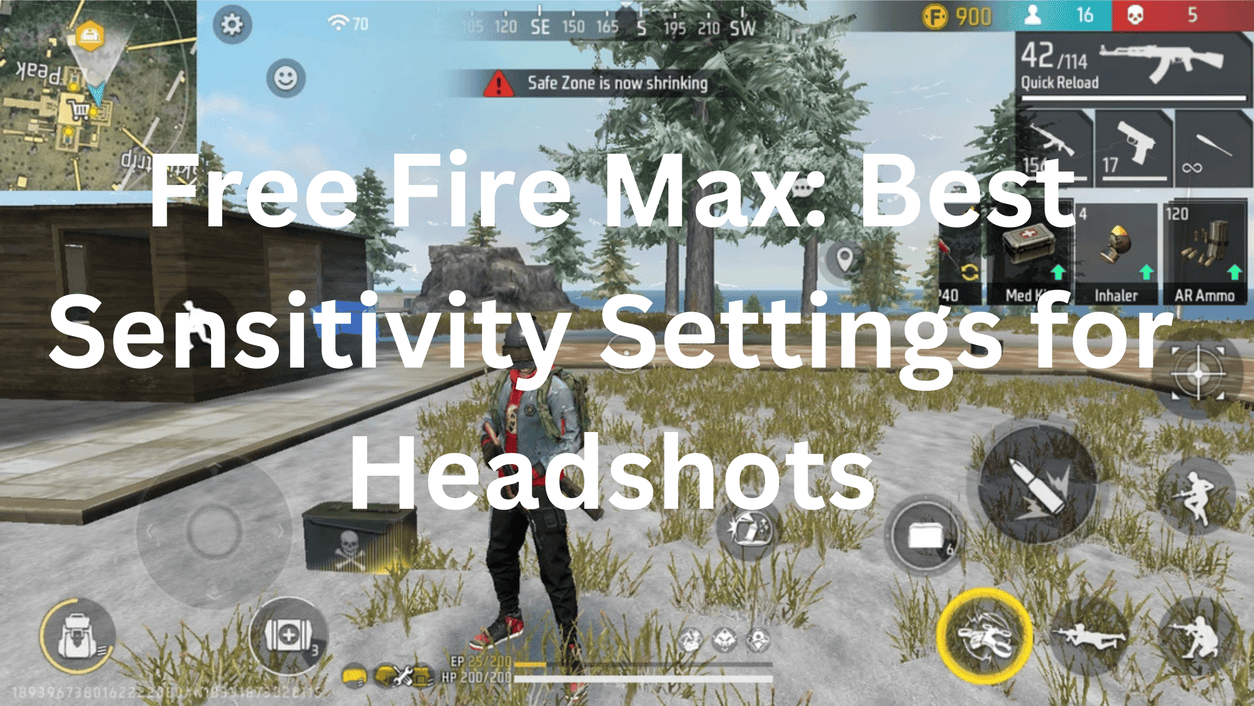
  • Free Fire Max: Best Sensitivity Settings for Headshots (2026)

    Free Fire Max: Best Sensitivity Settings for Headshots (2026)

    Headshots in Free Fire Max aren’t just about reflexes. Sensitivity settings play a critical role in how quickly and accurately your crosshair aligns with an enemy’s head and using the right Free Fire Max sensitivity for headshots has become essential to dominate the lobby in 2026.

    The wrong sensitivity makes good aim feel broken. The right one makes average aim feel lethal. Here’s the complete guide.

    Why Sensitivity Settings Matter So Much

    Free Fire Max rewards drag headshots above everything else and dragging requires your crosshair to move upward quickly and precisely in one smooth motion. Higher sensitivity allows the crosshair to move upward more quickly during a drag shot, making it easier to convert body shots into headshots.

    The problem most players have is copying pro settings blindly. Just because someone else’s settings work for them does not mean they will work for you. FF sensitivity depends heavily on your device and how you play. Aggressive players usually prefer slightly higher sensitivity for faster movement, while long-range players may choose lower settings for better control.

    The Sensitivity Settings Menu: Where to Find It

    Open Garena Free Fire Max, tap the gear icon in the top right corner, then select the Sensitivity tab. It is always best to change these numbers in the lobby so you can test them immediately in the training area.

    You’ll see six sliders. Each one controls a different part of your aim:

    SettingControls
    GeneralCamera speed during free look and movement
    Red DotAim speed when using Red Dot sight
    2x ScopeAim speed with 2x magnification
    4x ScopeAim speed with 4x magnification
    Sniper ScopeAim speed with sniper rifles
    Free LookCamera rotation when using free look button

    Best Sensitivity Settings by Device Type

    Your device’s refresh rate and RAM directly affects how these numbers should be set the same values that feel perfect on a 60Hz budget phone will feel uncontrollably fast on a 120Hz flagship.

    For Budget Devices (3-4GB RAM, 60Hz screen):

    Mid-range devices work best with sensitivity set to 174 and the Red Dot at 155. These settings provide a good balance that lets you hit headshots without causing uncontrollable screen shake.

    SettingValue
    General85-95
    Red Dot80-90
    2x Scope75-85
    4x Scope55-65
    Sniper Scope30-40
    Free Look70-80

    For Mid-Range Devices (6-8GB RAM, 90Hz screen):

    If you play on a 90Hz or 120Hz device, try increasing your General sensitivity by 5 compared to 60Hz settings higher frame rates and refresh rates make your movements smoother and more responsive.

    SettingValue
    General90-100
    Red Dot88-95
    2x Scope82-90
    4x Scope60-70
    Sniper Scope35-45
    Free Look75-85

    For High-End Devices (8-12GB RAM, 120Hz screen):

    High-end phones with 120Hz screens should use a lower sensitivity, such as 160 for General. Fast refresh rates make every swipe feel more responsive, so you don’t need to push the sliders to the max. If you use a flagship device, set your Sniper Scope to 40 for elite accuracy.

    SettingValue
    General95-100
    Red Dot90-100
    2x Scope85-92
    4x Scope60-70
    Sniper Scope35-45
    Free Look78-88

    The One-Tap Headshot Sensitivity Settings

    For consistent one-tap headshots specifically, the General and Red Dot values need to be high. The best sensitivity for Free Fire one-tap headshot 2026 usually includes high General and Red Dot values. This helps players drag the aim slightly upward and land consistent headshots.

    The best all-around setting for most players is 95 for General and 90 for Red Dot. This configuration provides a stable response for both close-range shotgun fights and mid-range assault rifle sprays.

    How to Actually Do a Drag Headshot

    The drag headshot is the most effective technique for consistent headshots in Free Fire Max and sensitivity only works if your technique is right.

    Don’t aim directly at the head initially. Start by aiming at the enemy’s chest. This gives you room to drag upward.

    Here’s the step-by-step drag headshot method:

    Step 1: Aim your crosshair at the enemy’s chest level not the head.

    Step 2: Press fire and simultaneously drag your finger upward in a smooth motion.

    Step 3: Move the fire button upward in a smooth motion to lock your crosshair onto the enemy’s head. This involves moving the fire button upward while firing not dragging the aim button.

    Step 4: Use the jump + drag technique for close-range fights jump while dragging upward for an unpredictable angle that’s harder for enemies to counter.

    The best weapons for drag headshots: M1887 is the king of drag headshots one shot to the head kills instantly. MP40 is great for close-range drag headshots with high fire rate. UMP is a balanced option with good damage and range.

    Gyroscope Settings: The Hidden Headshot Weapon

    The gyroscope is the most underused tool for headshots in Free Fire Max. Most players ignore it pro players rely on it.

    Go to Settings, Controls, Gyroscope, and enable it for “Scope Only” (recommended) or “Always On.” Start with Scope Only it activates the gyro only when you open a scope, which is easier to learn and covers the highest-impact use case.

    Set gyroscope sensitivity to 25-40 for the best results. Enable the gyroscope and set its sensitivity between 25-40 to manually counter recoil by tilting your phone down. At 25-35 gyro sensitivity, a small tilt brings the aim back to target level without overshooting. This is especially effective with the AK-47, M4A1, and Groza.

    How to use it: To fix vertical recoil, tilt your phone down slightly as you fire your weapon. This physical movement is much more precise than trying to drag your thumb down a glass screen.

    Graphics Settings That Help Headshots

    Headshots aren’t just about sensitivity frame rate consistency plays a huge role. A frame rate drop at the wrong moment makes a drag shot miss entirely.

    The best graphics configuration for headshot consistency is: Graphics set to Smooth, High FPS enabled, Aim Precision set to Precise on Scope, and Shadows turned Off.

    Turn Shadows Off immediately. It’s the biggest single frame rate improvement in Free Fire Max and cleaner visuals mean enemies are easier to spot and aim at quickly.

    Best Characters for Headshots

    Your character choice directly supports your headshot rate. Laura’s ability increases accuracy when scoped in at max level she adds 35% accuracy, making her perfect for headshots. Pair her with Rafael for silent sniper shots, Jota for HP recovery on kills, and Moco to mark enemies and track them through walls.

    Crosshair placement is non-negotiable regardless of character. Keep your crosshair at head level even when moving. This minimises the distance your crosshair needs to travel to land a headshot when you encounter an opponent.

    Quick Settings Reference Table

    Device TypeGeneralRed Dot2x Scope4x ScopeSniperFree Look
    Budget (60Hz)85-9580-9075-8555-6530-4070-80
    Mid-Range (90Hz)90-10088-9582-9060-7035-4575-85
    High-End (120Hz)95-10090-10085-9260-7035-4578-88

    How to Test and Dial In Your Settings

    Never test new sensitivity in ranked matches. Practice drag shots on dummies by swiping up while firing. Test one-taps by tapping the fire button without dragging for close range. Adjust in 10-point increments until comfortable. Play Custom Rooms or Clash Squad to fine-tune in real scenarios.

    The testing routine that actually works:

    Spend 15-20 minutes in the Training Ground after every sensitivity change. Practice drag headshots on stationary dummies first, then moving targets. Only move to Clash Squad when your drag feels natural and consistent then ranked after Clash Squad feels comfortable.

    The honest truth: sensitivity settings are the foundation, not the ceiling. Sensitivity helps with crosshair movement, but consistent headshots also require good crosshair placement, drag-shot practice, and familiarity with your preferred weapons.

    Get the settings right, practice the drag in Training Grounds daily, keep your crosshair at head level always, and the headshots follow naturally. There’s no shortcut past that combination.
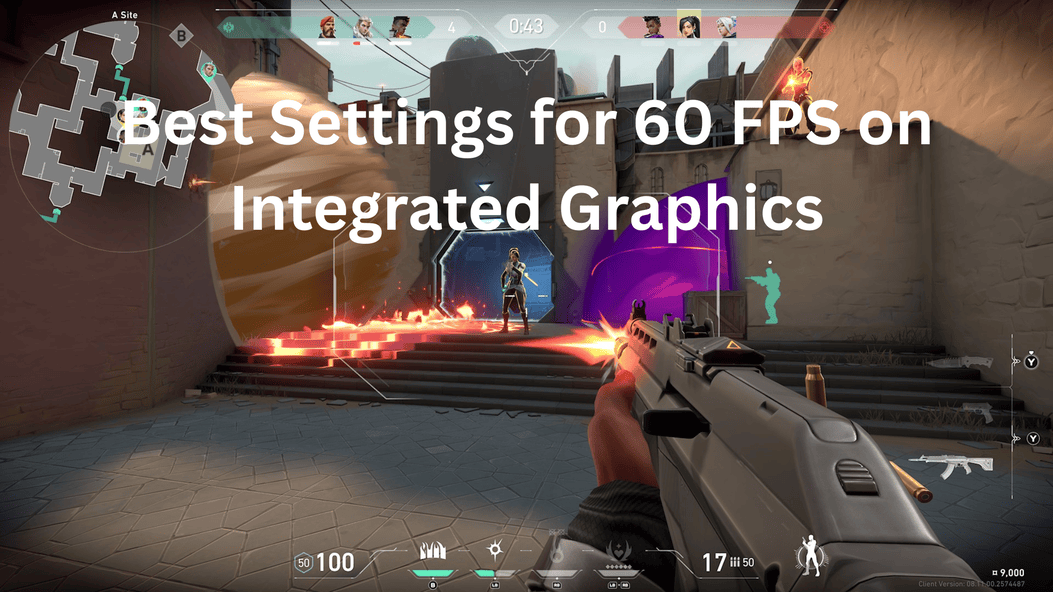
  • Valorant Low FPS Fix: Best Settings for 60 FPS on Integrated Graphics

    Valorant Low FPS Fix: Best Settings for 60 FPS on Integrated Graphics

    Here’s something most players don’t know. Valorant was built from the ground up to run on hardware your parents might have thrown out. Riot’s stated design goal was 30 FPS on a machine from 2014 using integrated graphics and they hit it. The minimum spec is an Intel Core i3-4150 with Intel HD Graphics 4000, no dedicated GPU required.

    That means 60 FPS on integrated graphics is genuinely achievable you just need to know exactly what to change. This guide gets you there, step by step.

    Why You’re Getting Low FPS on Integrated Graphics

    Integrated graphics share system RAM with your CPU there’s no dedicated VRAM. Every texture, shadow, and particle effect you render comes directly out of the same memory pool your OS and background apps are already competing for.

    The fix isn’t magic it’s about removing every unnecessary GPU and CPU load so everything your hardware has goes toward frame generation and hit registration. Nothing else.

    Step 1: The Resolution Drop Biggest Single FPS Gain

    This is the change that moves the needle more than anything else in the graphics settings menu. Resolution 1280×720 is the single biggest gain on integrated graphics. This alone takes most integrated setups from under 30 FPS to 45-60 FPS.

    If you want maximum boost, try 1024×768 (True 4:3). Unlike CS:GO, 4:3 in Valorant does not make enemy heads wider (hitboxes stay the same). However, it makes the crosshair and UI larger and can give you a 20-30 FPS boost on potato PCs.

    Set your display mode to Fullscreen never Windowed or Borderless. Both Windowed and Borderless add latency and reduce performance compared to exclusive Fullscreen.

    Step 2: In-Game Graphics Settings The Exact Values

    Go to Settings, click the Video tab, then Graphics Quality. Here’s exactly what to set for maximum FPS on integrated graphics:

    SettingValueWhy
    Multithreaded RenderingONGives the biggest single-setting FPS boost, typically adding 20-50% more frames on any CPU with 4 or more cores
    Material QualityLowDirect GPU load reduction
    Texture QualityLowAll quality settings: Low, no exceptions on integrated graphics
    Detail QualityLowOne of the few settings that impacts performance across all system types
    UI QualityLowReduces rendering overhead
    VignetteOffNo gameplay value, wastes GPU cycles
    V-SyncOFFCauses massive input lag always off
    Anti-AliasingNoneExpensive on integrated graphics
    Anisotropic Filtering1xLowest setting
    Cast ShadowsOffMajor performance cost, zero gameplay benefit
    BloomOffAdds visual noise that hides enemies
    DistortionOffGPU cost with no competitive upside
    NVIDIA ReflexOn + BoostReduces input latency even on low-end hardware

    The single most important setting on this entire list is Multithreaded Rendering. Turning it off can halve your FPS. Patches sometimes reset it and a shocking number of players have it flipped off from some old troubleshooting attempt that never got reversed. Check it every time after a major patch.

    Step 3: Windows Power Plan Fix

    Windows is actively throttling your integrated graphics and you don’t know it. Sometimes the problem isn’t the game it’s Windows trying to save power. This is a Windows feature that limits your CPU and GPU performance to save battery.

    Fix it in two steps:

    1. Search “Power Plan” in the Windows start menu
    2. Select High Performance or Ultimate Performance (if available)

    This is especially critical on laptops most laptops default to Balanced or Power Saver mode, which actively reduces CPU clock speeds during gaming. Switching to High Performance unlocks your processor’s full clock speed and your integrated GPU’s maximum operating frequency.

    Step 4: Intel and AMD Integrated Graphics Driver Settings

    Your integrated graphics driver has its own performance settings and the defaults are not set for gaming.

    For Intel Integrated Graphics (Intel HD/UHD/Iris Xe): Open Intel Graphics Command Center, find Valorant under Gaming, and set these:

    Intel SettingValue
    Application Optimal ModeOn
    Graphics Performance PreferencePerformance
    Vertical SyncOff
    Anisotropic FilteringApplication Default

    For AMD Integrated Graphics (Ryzen APU with Radeon Vega/RDNA): Open AMD Radeon Software, navigate to the Gaming tab, and select Valorant. AMD’s Anti-Lag feature works similarly to NVIDIA Reflex and can reduce input latency by a full frame on lower-end hardware.

    Set Radeon Anti-Lag to On and Graphics Profile to eSports this profile reduces visual quality in favour of raw frame rate, which is exactly what integrated graphics needs.

    Step 5: Allocate More RAM to Integrated Graphics

    On most laptops and desktops with integrated graphics, you can increase the shared VRAM allocation in the BIOS and this makes a meaningful difference in Valorant.

    How to do it:

    1. Restart your PC and press Delete, F2, or F10 to enter BIOS (varies by manufacturer)
    2. Look for “UMA Frame Buffer Size”, “Shared Memory Size”, or “IGPU Multi-Monitor” depending on your board
    3. Change from 128MB or 256MB to 512MB or 1GB
    4. Save and restart

    More shared VRAM means fewer texture streaming stalls which is one of the main causes of sudden FPS drops mid-match on integrated graphics.

    Step 6: Close Everything Before You Launch

    Integrated graphics has no VRAM buffer to absorb background app overhead. Every MB of RAM your background apps consume is a MB taken from Valorant.

    Close or disable before launching:

    • Browser (Chrome especially 300-500MB minimum)
    • Discord (close it or set to push-to-talk to reduce CPU)
    • Windows Update (pause for 7 days in Settings)
    • OneDrive and any cloud sync
    • Xbox Game Bar (Settings, Gaming, Xbox Game Bar, Off)
    • Background apps in Settings, Privacy, Background Apps

    Set Valorant’s priority to High in Task Manager after launching find Valorant.exe, right-click, Set Priority to High this forces Windows to give Valorant more CPU time over background processes.

    Step 7: Update Your Integrated Graphics Driver

    Outdated drivers are one of the most common hidden causes of low FPS on integrated graphics. AMD’s 2025-2026 drivers have introduced significant performance improvements for older GPUs. After installing new drivers, restart your PC. This step takes five minutes and can genuinely add 5-15 FPS across the board.

    For Intel: Download the latest driver from Intel’s Driver Support page search “Intel Driver and Support Assistant” and run the automatic detection tool.

    For AMD APUs: Download directly from AMD’s website under Drivers and Support, enter your APU model number, and install the latest Adrenalin Edition driver.

    What FPS to Expect After All Optimisations

    HardwareBefore OptimisationAfter Optimisation
    Intel HD 4000 (i3-4150)15-25 FPS35-50 FPS
    Intel UHD 620 (i5-8250U)30-40 FPS55-70 FPS
    Intel Iris Xe (i5-1135G7)50-70 FPS80-100 FPS
    AMD Radeon Vega 8 (Ryzen 5 2500U)40-55 FPS65-80 FPS
    AMD Radeon 680M (Ryzen 7 6800H)70-90 FPS100-130 FPS

    The One Setting Most Players Still Get Wrong

    Multithreaded Rendering is the setting that matters most. Turning it off can halve your FPS it’s on by default but patches sometimes reset it.

    Every time Valorant updates, check this setting first. It takes five seconds and it’s the difference between playable and unplayable on integrated graphics. Everything else on this list matters but this one setting has ended more ranked games than any other.

    Follow every step in order, check Multithreaded Rendering after every patch, and 60 FPS on integrated graphics is not just possible it’s consistent.

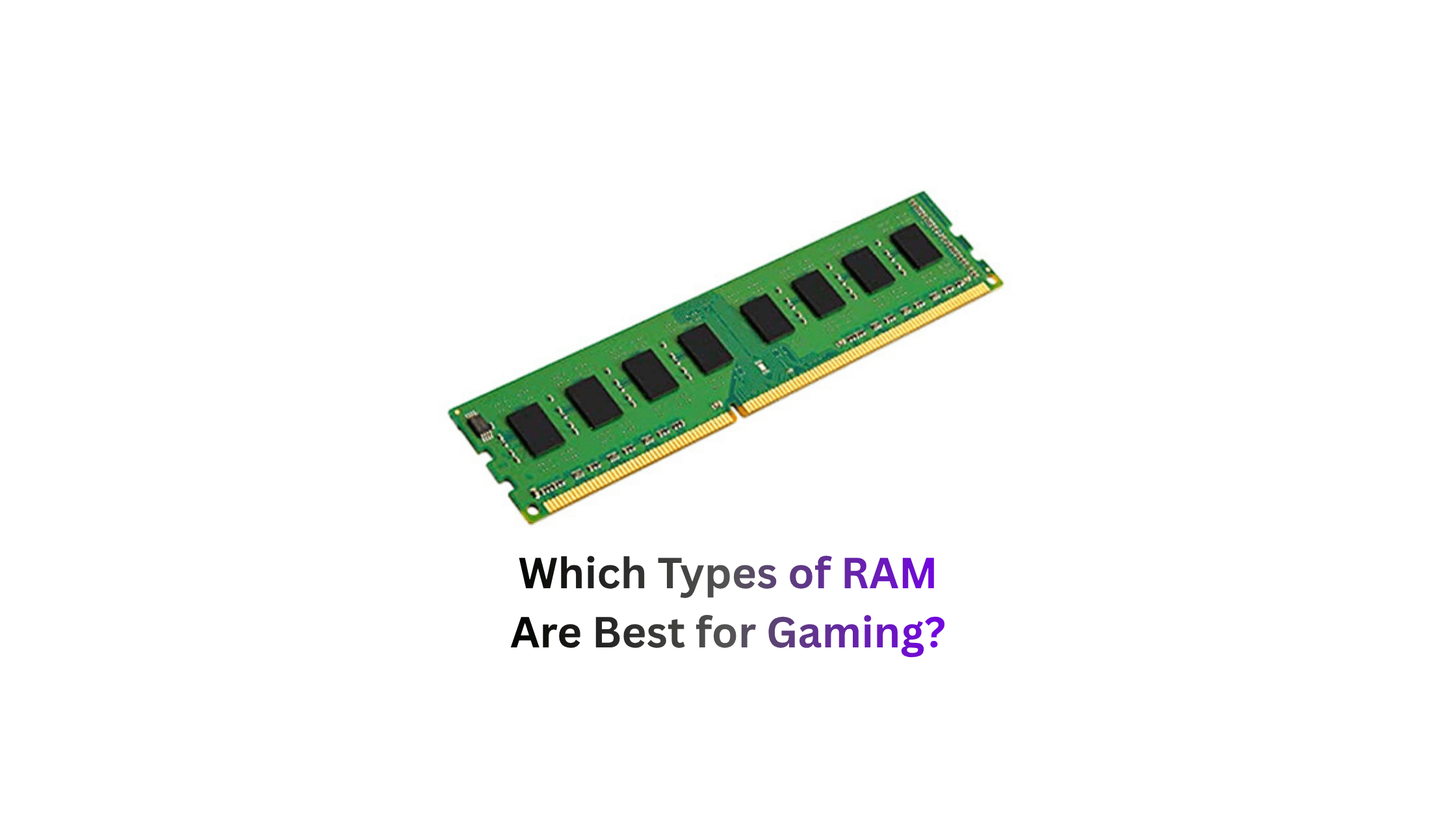
  • Which Types of RAM Are Best for Gaming?

    Which Types of RAM Are Best for Gaming?

    RAM is one of those components that most people buy once and never think about again. But in 2026, the wrong RAM choice can cost you real performance and the right choice depends entirely on your platform, budget, and what you’re gaming on. Here’s everything you need to know, broken down clearly.

    First: Understand the RAM Types That Actually Affect Gaming

    Not all RAM is the same and different types serve completely different purposes. Before picking a kit, you need to know which type is relevant to your specific device.

    Here’s the full breakdown:

    RAM TypeUsed InWhat It Does
    DDR4Desktop PCs, older laptopsGeneral-purpose system RAM, AM4 and LGA 1700 platforms
    DDR5Modern desktop PCs, new laptopsCurrent-gen standard, AM5 and Intel 12th gen onwards
    LPDDR5Laptops, phones, tabletsLow-power DDR5 for mobile devices, soldered in place
    LPDDR5XUltrabooks, handhelds, flagship phonesFaster version of LPDDR5, better for AAA mobile gaming
    GDDR6/GDDR6XGPU VRAMGraphics card memory, not upgradeable by user
    GDDR7Latest GPUs (RTX 5000, RX 9000)Next-gen GPU VRAM, 2x bandwidth of GDDR6
    HBM3/HBM4AI chips, server GPUsUltra-high bandwidth, not relevant to consumer gaming

    The types that matter for most gamers are DDR4, DDR5, and LPDDR5. Everything else is either inside your GPU or inside your phone.

    DDR4: Still Alive and Genuinely Good

    DDR4 is not dead in 2026 and if you’re on an AM4 or LGA 1700 platform, it still makes a strong case. DDR4 was the de facto memory standard for PCs for the last decade and still performs very well in gaming. Real-world benchmarks consistently show DDR4 running at 3200 to 3600 MHz coming within 5% of budget DDR5 in most gaming workloads.

    Testing shows that a 32GB DDR4-3200 or 3600 MHz kit performs within 5% of entry-level DDR5 in most games.

    At 1440p and 4K the gap shrinks even further because the GPU becomes the main bottleneck anyway. The real-world performance differences are small and non-existent in GPU-limited scenarios such as 4K gaming, which is usually the case unless you’re chasing very high frames per second.

    The sweet spot for DDR4 gaming in 2026:

    On Intel platforms, 3200 MHz with CL16 timing gives strong, stable performance on most boards. On AMD Ryzen, 3600 MHz is the better target because it aligns the Infinity Fabric at 1800 MHz, which lowers latency and improves 1% lows in CPU-sensitive games.

    Should you upgrade from DDR4 to DDR5? If you have a good DDR4 kit, let’s say a 2×16 GB DDR4-3200 C14 kit or better, there’s little reason to spend the money to upgrade to DDR5 for gaming.

    DDR5: The Current Standard for New Builds

    If you’re building a new PC in 2026, DDR5 is the only sensible choice. It’s certainly sensible to opt for DDR5 when making a new purchase, especially as it’s also an investment in the future. New gaming titles with high demands will run significantly better on DDR5 than on DDR4, and the next upgrade to DDR6 won’t appear until 2027 at the earliest.

    DDR5 isn’t just faster it’s architecturally different. DDR5 supports larger memory capacity, higher bandwidth, and is more efficient. DDR5 is twice as fast as DDR4 and quadruples the per-die memory density. It also splits the larger 64-bit channel into two independent 32-bit subchannels.

    The performance gains are real at 1080p. At 1080p with a fast GPU and CPU-bound games, DDR5 can show 10-20% higher frame rates. For competitive gaming at high refresh rates, DDR5 6000 is the better choice.

    The Right DDR5 Speed for Your Platform

    This is where most people get it wrong buying the fastest DDR5 kit available isn’t always the best move. Your CPU’s memory controller has a sweet spot, and exceeding it gives you diminishing returns.

    Different processors need different memory configurations for optimal performance. DDR5 only sweet spot is 6000 MT/s CL30 for perfect 1:1 sync with memory controller on AMD. X3D chips need nothing faster. Arrow Lake benefits from 6400 to 8000 speeds. CUDIMM technology stabilizes extreme frequencies above 8000 MT/s.

    Here’s the platform-specific sweet spot table:

    PlatformBest DDR5 SpeedNotes
    AMD AM5 (Ryzen 7000/9000)DDR5-6000 CL30Perfect 1:1 Infinity Fabric sync
    AMD AM5 X3D chipsDDR5-6000Going faster adds no gaming benefit
    Intel Arrow Lake (Z890)DDR5-6400 to 8000CUDIMM helps above 8000 MT/s
    Intel Core 13th/14th GenDDR5-5600 to 6000Stable sweet spot
    Budget DDR5 buildsDDR5-5600Solid entry point, good value

    CUDIMM technology costs a significant premium and only benefits Intel Z890 boards running above 8000 MT/s. Most gamers see negligible real-world gains. Standard UDIMM DDR5-6400 offers 95 percent of the performance at half the cost.

    How Much RAM Do You Actually Need?

    The minimum bar has moved in 2026 and it moved faster than most people expected. Several 2024-2026 titles have reported performance issues with 16GB, and memory usage in open-world games is creeping up. 32GB DDR5 is the recommended baseline for a future-proof gaming PC, not overkill.

    We suggest starting with 16GB for DDR4 systems. For DDR5 systems, only use two sticks. At higher speeds, memory controllers don’t work well with 4-stick setups. If you can afford it, 32GB is the best amount.

    Here’s the honest capacity guide:

    RAM AmountWho It’s ForReality Check
    8GBAbsolute budget minimumStutters in modern open-world games
    16GB DDR4Budget gaming, older platformsHandles current games, tight on newer titles
    16GB DDR5Mid-range new buildsWorks fine today, may need upgrade by 2028
    32GB DDR4Existing DDR4 systems future-proofingBest value upgrade for older platforms
    32GB DDR5New builds, recommended baselineThe default recommendation for 2026 builds
    64GB DDR5Content creators, streaming while gamingOverkill for pure gaming but useful for multitaskers

    LPDDR5 and LPDDR5X: For Laptop and Mobile Gamers

    If you game on a laptop, ultrabook, or handheld, LPDDR5 is your RAM type and you cannot upgrade it. LPDDR is a low-power version of DDR RAM, designed for energy efficiency. It’s used in devices where battery life is a priority. LPDDR5 is soldered directly onto the motherboard you choose your capacity when you buy the device, and that’s it forever.

    LPDDR5X is the version that actually matters for gaming laptops in 2026. With the introduction of LPDDR5X, bandwidth has reached or even surpassed that of DDR5, enabling smooth performance when running AAA games on devices like ultrabooks.

    The trade-off is thermal limits. Sustained heavy gaming on LPDDR5X devices runs into the thermal ceiling of the chassis faster than a desktop DDR5 system which is why gaming laptops with LPDDR5X still throttle under extended load in ways desktop builds don’t.

    GDDR7: The GPU VRAM Revolution

    Your GPU has its own separate RAM and in 2026, GDDR7 is the new standard on RTX 5000 and RX 9000 cards. GDDR (Graphics Double Data Rate) memory is similar to DDR RAM but optimized for graphical workloads. Current GPUs use GDDR6 or GDDR6X.

    GDDR7 doubles the bandwidth of GDDR6 which is critical for 4K gaming where texture streaming from VRAM is the bottleneck. If your GPU runs out of VRAM, textures spill over into system RAM, and the bandwidth difference between GDDR7 and DDR5 creates a massive performance gap.

    This is why VRAM capacity matters alongside system RAM. A GPU with 12GB of GDDR7 is significantly faster than one with 12GB of GDDR6 even at the same capacity.

    What’s Coming Next: DDR6

    DDR6 is on the horizon but not worth waiting for. Desktop DDR6 won’t arrive before late 2027 or early 2028. Waiting means losing 1-2 years of performance. New standards come with high prices at launch, initial BIOS bugs, limited compatibility, and low stock. Current DDR5 remains very performant for 3-5 years minimum.

    The one exception is mobile. For laptops and mobile: if renewing late 2026, targeting LPDDR6 may make sense. The first LPDDR6 smartphones and laptops are expected in Q3/Q4 2026.

    Quick Verdict: Which RAM is Best for Your Situation?

    Your SituationBest RAM Choice
    New desktop build 202632GB DDR5-6000 CL30 (AMD) or DDR5-6400 (Intel)
    Existing AM4 or LGA 1700 system32GB DDR4-3600 CL16 no need to upgrade
    Budget new build16GB DDR5-5600 as a starting kit
    Gaming laptop buyerLook for LPDDR5X, minimum 16GB
    Competitive 1080p gamingDDR5-6000 the 10-20% FPS gains are real here
    4K gamingRAM generation barely matters, GPU is the bottleneck
    Should I wait for DDR6?No build now with DDR5, upgrade in 2028

    The honest bottom line for 2026: DDR5 is technically better, especially at high frequencies. In practice, the difference at 1440p and 4K is small under 5% in most games. Going 32GB DDR5-6000 is the default recommendation for any new gaming PC in 2026.

    If you already have DDR4 and it’s running at 3200-3600 MHz with 32GB stay there. Switching from DDR4 to DDR5 requires a new motherboard and usually a new CPU. The gaming performance gain does not justify that cost. If you are already planning a full build, yes, go DDR5. Otherwise, put the money toward your GPU.

  • PUBG Mobile Maps The Complete Guide (2026)

    PUBG Mobile Maps The Complete Guide (2026)

    PUBG Mobile has one of the most diverse map pools in mobile gaming. From the classic 8x8km battlegrounds to tiny 1x1km sprint maps, each one plays completely differently. Here’s every map you need to know, what makes it unique, and where to land.

    Quick Reference: All Maps at a Glance

    MapSizePlayersMatch TimeBest For
    Erangel8×8 km10025–35 minAll-around, balanced play
    Miramar8×8 km10025–35 minLong-range sniping
    Sanhok4×4 km10015–20 minFast-paced, close combat
    Vikendi6×6 km10020–30 minMid-range, tactical play
    Karakin2×2 km6410–15 minAggressive, explosive play
    Livik2×2 km5215 minQuick sessions, mobile exclusive
    Nusa1×1 km4010 minFastest matches, mobile exclusive

    1. Erangel: The Home of PUBG

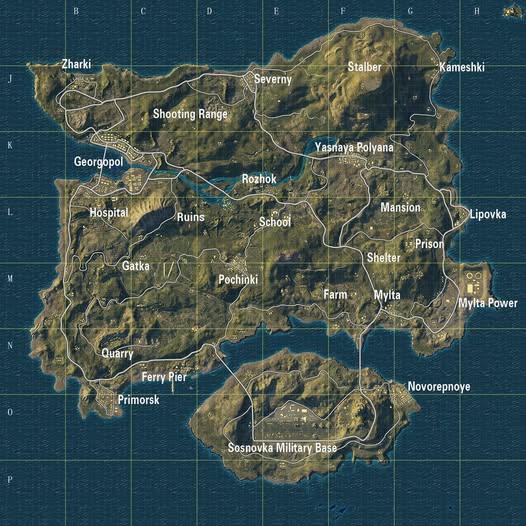
    Erangel is where PUBG began and it’s still the most balanced map in the entire game. Erangel is the original PUBG map set in a Soviet-era dystopia. Everything from open fields to dense military compounds exists here, making it the perfect map to learn every playstyle.

    The map rewards every approach equally. Close-range fighters thrive in Pochinki and the Military Base. Snipers dominate the open fields around Georgopol and Stalber. Erangel is the only map great for everything, including close-range fights, sniping, and vehicle chase fights. It’s an 8x8km area with small outcroppings of buildings, some places covered with grassland and trees, and some open places with ridges.

    Best drop spots: Pochinki, Georgopol, Military Base, School, Novorepnoye.

    2. Miramar: The Desert Sniper’s Paradise

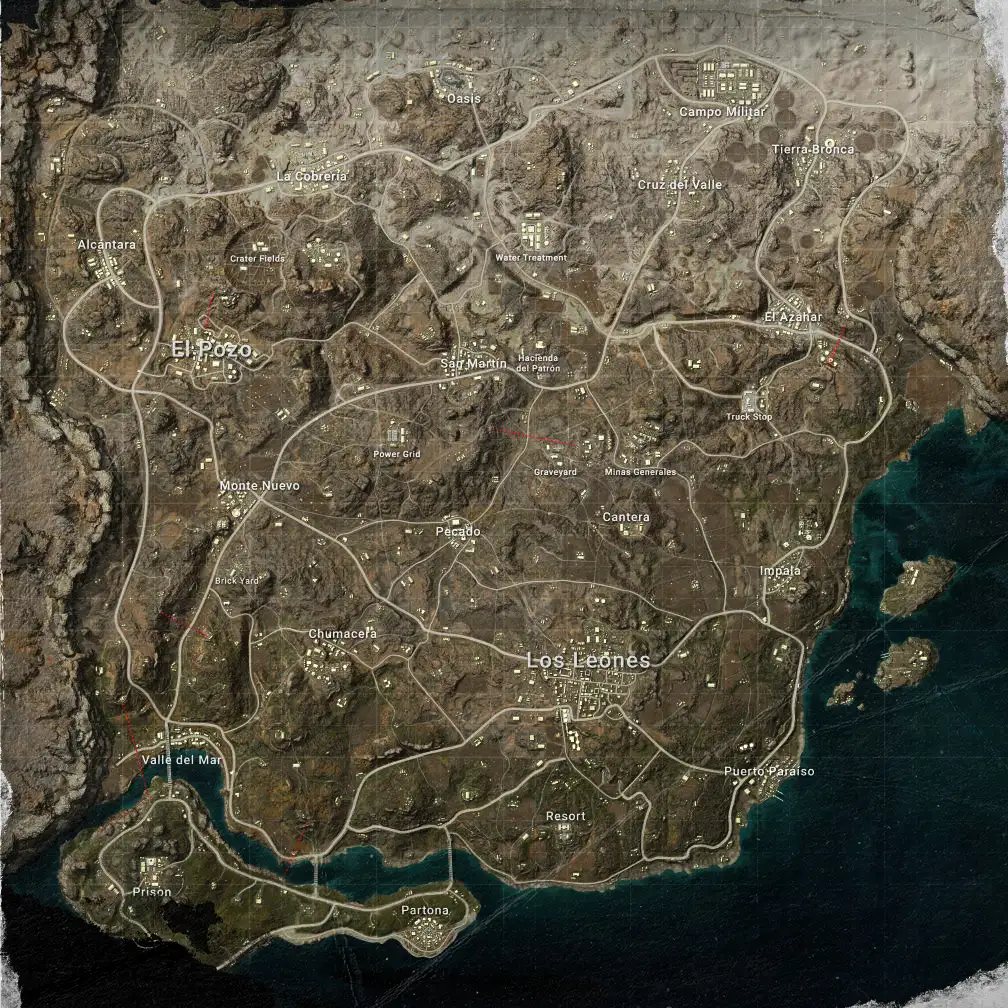
    Miramar is the most punishing map in PUBG Mobile if you’re not prepared. Miramar is a Central American desert map covered with mountains, ridges, and massive open spaces. Every rotation requires planning because cover is sparse and sightlines are enormous.

    Run across an open hillside carelessly and you’ll be picked off from 400 metres away before you hear the shot. The combat tends to be slower than on other maps. Leaving an urban area and taking a trip into the desert results in intense standoffs. Miramar’s best loot spots include El Pozo, Los Leones, Pecado, and the Hacienda del Patron.

    Best drop spots: Los Leones, El Pozo, Pecado, Hacienda del Patron.

    3. Sanhok: Chaos in the Jungle

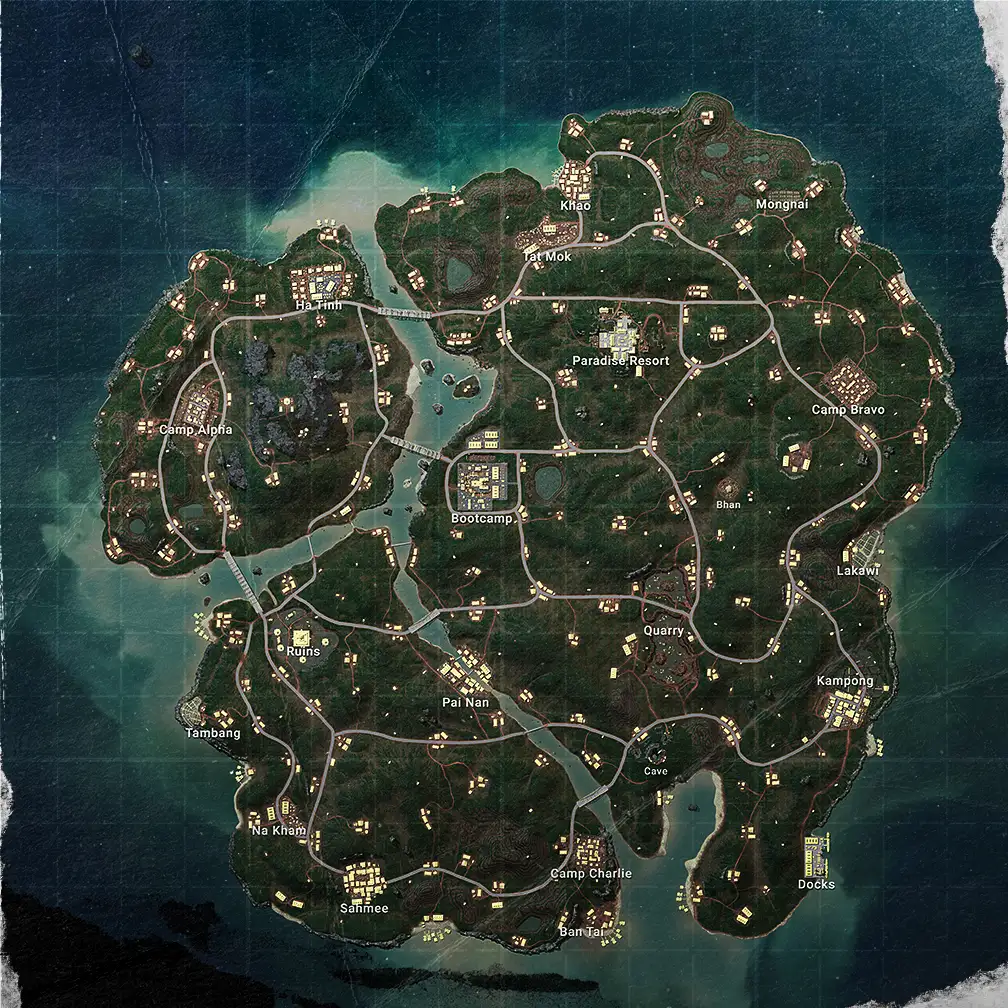
    Sanhok is where you go when you want a fight in the first 60 seconds of a match. Sanhok is the 4x4km map totally covered with grass and trees. It looks like a rainforest with some areas covered by mountains and cities.

    Sanhok’s small size and dense forest make it perfect for fast-paced close-quarters gunfights. Early-game encounters are almost guaranteed, so finding decent loot right away is critical. The best places for top-tier gear are Bootcamp, the Ruins, and Paradise Resort.

    If you want to avoid early fights, try landing at the Kampong or the Docks instead.

    Best drop spots: Bootcamp, Paradise Resort, Ruins, Kampong.

    4. Vikendi: Snow, Trains, and Tactics

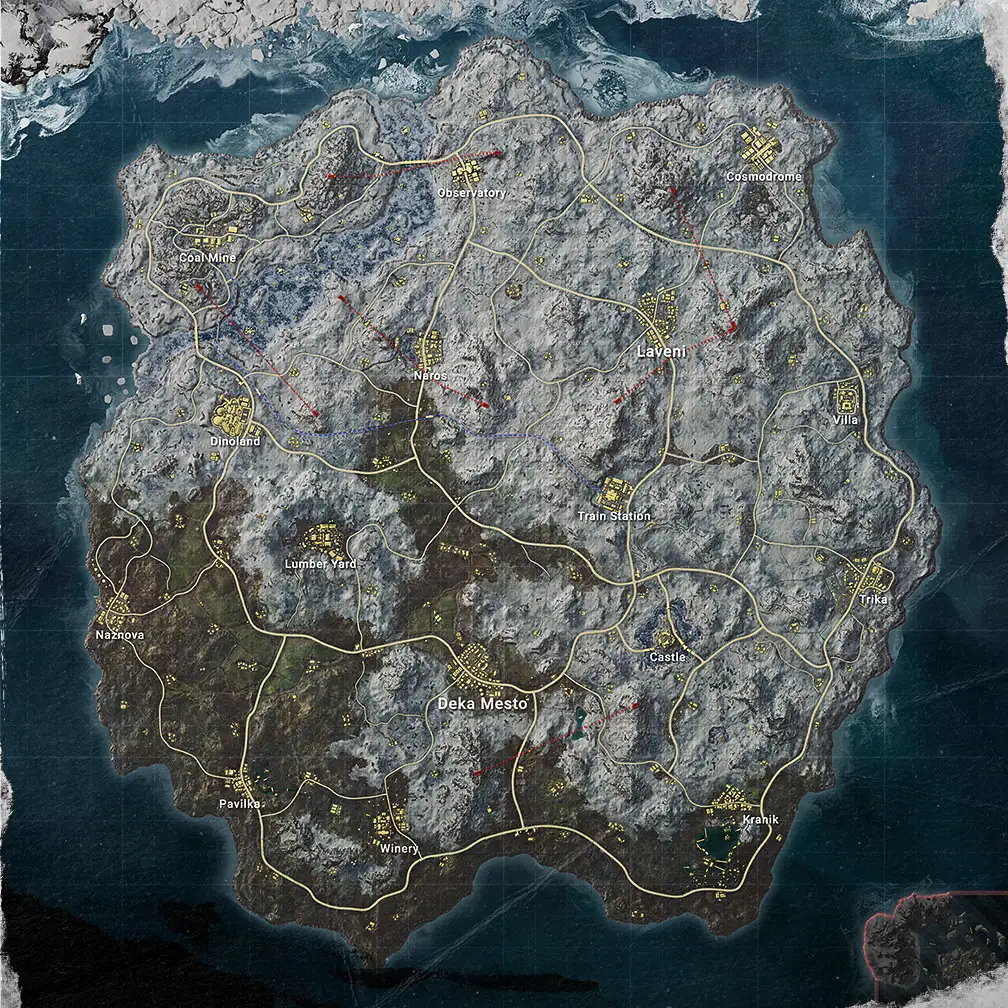
    Vikendi is the most atmospheric map in PUBG Mobile and the most tactically unique. It’s a 6x6km map based on an isolated Northern resort island with both day and night versions available.

    The working train system is Vikendi’s signature feature. Jumping on a train is a handy way to move across the map, but they’re not exactly stealthy. You can hop on at one of the map’s 11 train stations and the schedule is the same for every match.

    Footprints in the snow give away enemy positions a mechanic unique to Vikendi that completely changes how you move and rotate. The best Vikendi loot spots are the Cosmodrome, Dinoland, Castle, and Cement Factory.

    Best drop spots: Cosmodrome, Dinoland, Castle, Villa.

    5. Karakin: Demolition Derby

    Karakin is PUBG Mobile’s most explosive and aggressive map by design. The Karakin map may look like a tiny Miramar, but its combat pace is much, much faster. At just 2x2km, there is nowhere to hide and nowhere to camp safely.

    The destructible walls are what define it. Sticky bombs allow players to blow through walls, meaning no building is truly safe cover. Every wall is potentially a door for an enemy with explosives and it changes how you think about cover entirely.

    With 64 players on 2x2km, encounters happen constantly and the circle forces action from the very first minute. If you want to practice aggressive plays and close-range gunfights, Karakin is your training ground.

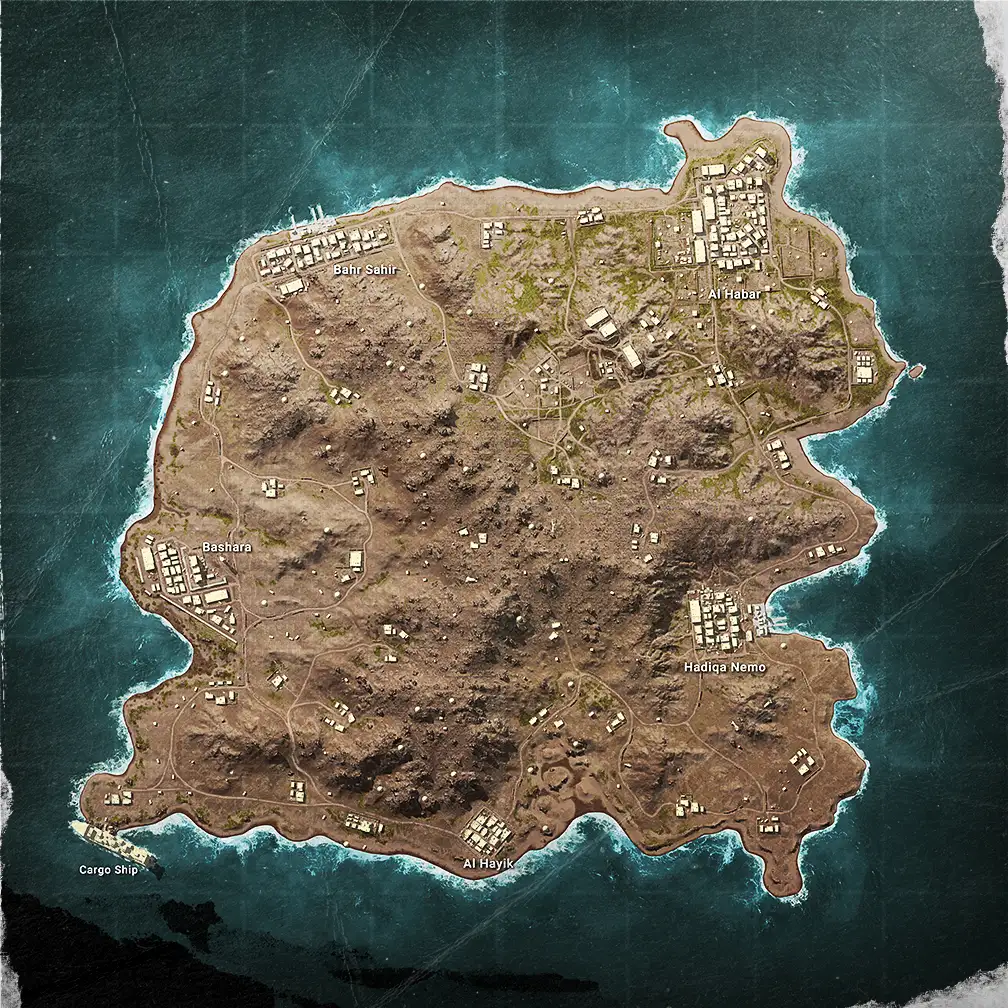
    Best drop spots: Hadiqa Nemo, Al Habar, Cargo Ship.

    6. Livik: The Mobile Exclusive

    Livik was built specifically for mobile players and it shows in every design decision. Livik is the first PUBG Mobile exclusive map, released in July 2020 in Beta and officially launched in May 2022. The map houses up to 52 players in a 2x2km area and can be completed in as little as 15 minutes.

    The terrain variety is extraordinary for a 2x2km map. Livik features unique mechanics only available here including ziplines, treasure maps leading to high-tier loot, and secret locations. You can even play soccer at the Soccer Field.

    Beneath it all is Livik’s volcano which can erupt at any given moment, forcing players to dodge explosions and shelter in buildings. It’s the kind of dynamic environmental feature no other PUBG map has.

    Exclusive to Livik: The Monster Truck vehicle and XT weapons found at buy stations and supply crates that are more powerful than standard weapons anywhere else in the game.

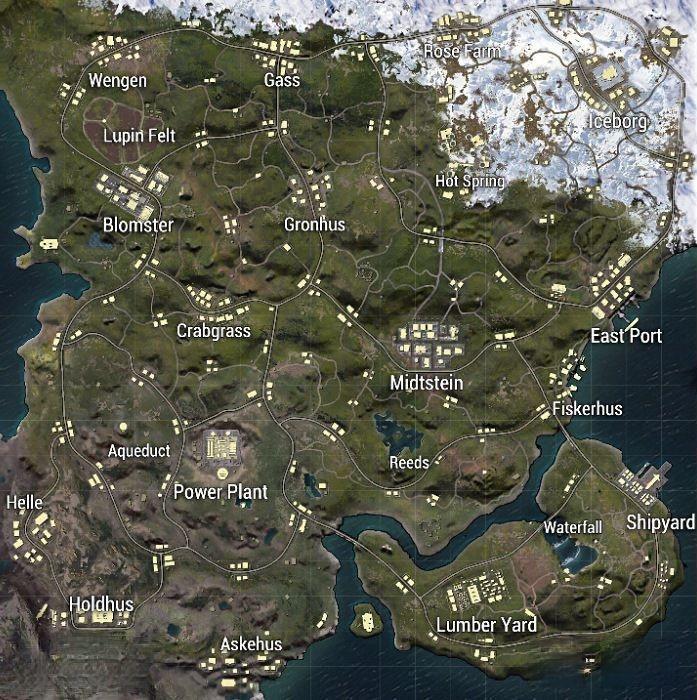
    Best drop spots: Midstein, Blomster, Power Plant, Hot Springs.

    7. Nusa: The Sprint Map

    Nusa is PUBG Mobile’s smallest map and its fastest experience. Nusa is just 1×1 kilometres in size and became the second mobile-exclusive map after Livik.

    With 40 players on 1km of island terrain, the match is essentially one long continuous firefight. There are no slow rotations, no quiet phases, no camping opportunities. The moment you land, combat begins and doesn’t stop until the circle closes.

    Nusa introduced two exclusive weapons on launch including the NS2000 Shotgun and the Tactical Crossbow, alongside a brand new vehicle exclusive to the map. It’s the perfect map for players who have 10 minutes and want a complete match experience.

    Bonus: Metro Royale Mode

    Beyond the classic BR maps, PUBG Mobile has Metro Royale with its own exclusive map. Metro Royale is a spin-off mode with its own dedicated map, completely separate from the Classic rotation.

    It plays like a PvPvE extraction shooter. You land with limited gear, fight both AI enemies and real players, loot for high-tier equipment, and extract safely before dying. Metro Royale received a major upgrade in Version 3.9 with a new tiered monster system, deeper player progression, and hatchable creatures added to Zombie Uprising mode.

    Which Map Should You Play?

    Your PlaystyleBest Map
    Learning the gameErangel, balanced and teaches all skills
    Sniper mainMiramar, open terrain and long sightlines
    Aggressive rusherSanhok or Karakin, constant combat
    Tactical playerVikendi, trains, footprints, positioning
    Short on timeLivik (15 min) or Nusa (10 min)
    PvPvE extractionMetro Royale

    The honest answer for beginners: start on Erangel. It teaches every fundamental including looting, rotation, vehicle use, zone management, and every range of combat in one map. Each map presents unique sightlines, loot routes, and rotation choices and once Erangel feels natural, every other map just becomes a variation on what you’ve already learned.

  • Tips to Install Games Faster on Windows

    Tips to Install Games Faster on Windows

    Waiting hours for a game to install is genuinely painful especially when you just paid for it. The good news is most slow installations are fixable with the right settings. Here’s every trick that actually works, in order of impact.

    First Understand Why It’s Slow

    There are two separate speed problems and most people confuse them. Downloading is getting the compressed files to your PC installing is decompressing, verifying, and writing them to the correct directories. You can have gigabit internet and still wait an hour if your storage drive is slow.

    Your storage drive is almost always the real bottleneck not your internet connection. Fix both and you’ll see a dramatic difference.

    Tip 1 Move Games to an SSD Immediately

    This is the single most impactful change you can make. Upgrading from an HDD to even a basic SATA SSD is the most significant quality-of-life improvement you can make for your gaming rig it not only speeds up installations dramatically but also reduces game loading times.

    Here’s the real-world write speed difference:

    Drive TypeWrite SpeedImpact
    HDD (7200 RPM)120–220 MB/sBottlenecks gigabit internet on large installs
    SATA SSD450–530 MB/sHandles any consumer internet speed
    NVMe SSD (PCIe 4.0)3,000–7,000 MB/sNever the bottleneck

    If you’re downloading to an HDD and your speed fluctuates between fast and zero that’s the drive struggling to keep up, not your internet failing. Steam downloads data faster than the disk writes it, causing repeated pauses while the disk catches up.

    Tip 2 Keep at Least 15–20% Free Space on Your Drive

    A full drive installs games dramatically slower and most people don’t know this. When an SSD or HDD fills up past 85% capacity, write speeds degrade significantly because the drive has to work harder to find empty blocks.

    You also need breathing room for installation itself. You need roughly 3x the game’s final size as free space for download, decompression, and installation to complete. A 100GB game needs about 300GB free during installation plan ahead.

    Tip 3 Add Your Game Folders to Antivirus Exclusions

    Antivirus is silently throttling your downloads and it’s one of the most common hidden causes of slow installs. Antivirus programs deeply scan all network traffic and disk writes in real time this analysis overhead severely throttles Steam downloads. Add folder exclusions for your Steam installation and game library directories to prevent scanning and restore full speed without disabling protection.

    Here’s exactly how to add the exclusion in Windows Defender:

    1. Open Windows Security → Virus & Threat Protection
    2. Click Manage Settings → Add or Remove Exclusions
    3. Add folder: C:\Program Files (x86)\Steam and your game library folder
    4. Never exclude just Steam.exe scanning happens during file writes, not just on the executable

    A real case: One user had 972Mbps internet showing only 2.7Mbps download speed in Steam adding the steamapps folder to antivirus exclusions fixed it immediately.

    Tip 4 Disable Metered Connection

    Windows secretly throttles downloads on connections it marks as metered. Windows 10 and 11 mark many connections as metered by default especially Wi-Fi and mobile hotspots which caps background download speeds.

    To fix it: Go to Settings → Network & Internet → Wi-Fi → your network → Set as metered connection → Off. This one change alone can double download speeds on affected connections.

    Tip 5 Use Ethernet Instead of Wi-Fi

    Wi-Fi introduces packet loss and inconsistent speeds that directly slow down installations. Ethernet provides optimal download speeds Wi-Fi does not always provide the full speed your internet connection is capable of.

    Even a cheap ethernet cable makes a measurable difference especially over long installations where Wi-Fi signal fluctuations compound over hours.

    Tip 6 Change Your Download Region (Steam)

    Steam download servers get congested during peak hours and major sales switching regions fixes it. The closer the servers are to you, the more bandwidth they can use but during congestion, a server in a different time zone can actually be faster than your nearest one.

    How to change it: Steam → Settings → Downloads → Download Region → pick a different country. Start downloads late at night or early morning to avoid server congestion or temporarily change your Download Region to a region in a different time zone with less traffic.

    Tip 7 Set Process Priority to High

    Force Windows to give your game launcher more CPU and network resources. Open Task Manager → find your launcher (Steam.exe, EpicGamesLauncher.exe) → right-click → Go to Details → right-click again → Set Priority → High.

    This forces your system to prioritise the download process over background apps competing for resources. It’s especially effective on lower-end machines where CPU is also a bottleneck during installation.

    Tip 8 Close Everything Eating Bandwidth

    Background apps silently consume your internet while games download. Check if other applications are using your bandwidth watching high-resolution videos on YouTube while downloading a game affects the speed significantly. Other applications might also be downloading updates in the background.

    Close or pause these before starting a big installation:

    • Browser tabs (especially video streaming)
    • Windows Update (pause for 7 days in Settings)
    • OneDrive and Google Drive sync
    • Discord (it updates silently)
    • Any other game launcher with pending updates

    Tip 9 Clear Your Download Cache (Steam)

    Corrupted cache files cause most unexpected download slowdowns and failures. Go to Steam → Steam Menu → Settings → Downloads → Clear Download Cache. This removes corrupted temporary files that cause most download failures and slowdowns.

    Do this first if Steam suddenly starts downloading slower than usual it’s the fastest fix that requires zero technical knowledge and takes under a minute.

    Tip 10 Disable Streaming Throttle in Steam

    Steam silently caps your download speed when it detects streaming activity and most people never know. This setting is enabled by default and silently caps Steam’s download speed whenever Steam detects an active Remote Play session, in-home streaming, or broadcasting. Unless you actively need smooth streaming over fast downloads, turn it off in Settings → Downloads.

    It’s one of the most common hidden throttles on fast connections and it’s buried deep enough that most users never find it.

    Tip 11 Disable VPN During Downloads

    VPNs add extra routing and encryption overhead that directly slows down game downloads. VPNs add extra routing and encryption overhead which slows downloads pause or disable your VPN while downloading and whitelist Steam in your firewall.

    If your VPN actually makes downloads faster that means your ISP is throttling unencrypted traffic. Run a speed test with and without VPN if VPN speed is 50% or more faster, your ISP is throttling you and VPN is actually the right tool to use.

    Quick Reference Tips by Problem

    Your SymptomThe Fix
    Download speed fluctuates between fast and zeroStorage drive can’t keep up move to SSD
    Fast internet, slow Steam downloadsAdd Steam folder to antivirus exclusions
    Downloads slow at certain timesChange Steam download region or download overnight
    Speeds fine, installation still slowSSD upgrade HDD write speed is the bottleneck
    Download keeps stopping randomlyClear Steam download cache
    Wi-Fi download slower than expectedSwitch to Ethernet cable
    Everything else normal, still slowDisable metered connection in Windows
    Streaming and downloading simultaneously slowDisable streaming throttle in Steam settings

    The honest priority order: SSD first, antivirus exclusions second, close background apps third. Those three changes fix 90% of slow game installations on Windows everything else is fine-tuning on top of a solid foundation.

  • Call of Duty Mobile Pro Tips to Play Better in 2026

    Call of Duty Mobile Pro Tips to Play Better in 2026

    COD Mobile is still the undisputed king of mobile shooters and in 2026 the skill gap between casual and pro players is bigger than ever. Becoming a pro in CODM is less about superhuman reflexes and more about mastering your environment, settings, and strategic movement. Here’s everything you need, from settings to battlefield discipline.

    Part 1 Settings That Change Everything

    Switch to Four-Finger Claw Immediately

    The two-thumb playstyle has a hard ceiling and you’ll hit it fast in ranked. The Four-Finger Claw layout is the industry standard for pro players. By using your index fingers for jumping, sliding, and shooting while your thumbs handle movement and aiming, you can perform multiple actions simultaneously.

    This layout is the foundation of high-level CODM gameplay it lets you shoot, jump, and aim at the same time instead of choosing one. Pro players like HawksNest use 4-finger layouts, while iFerg plays with advanced multi-finger setups.

    Split Your ADS and Fire Buttons

    This single setting change improves your reaction time immediately. Using the combined ADS to Fire option slows your reaction especially for Snipers. Split your ADS and Fire buttons to gain faster response time and tighter aiming control during close and long-range engagements.

    It feels awkward for a day then it becomes muscle memory and you’ll never go back.

    Enable the Split Throw Button

    Getting stuck in a grenade menu mid-fight is a death sentence. Enable Split Throw Button to assign separate keys for Lethal and Tactical Grenades crucial for quick reaction moments in close-quarters combat.

    Activate Left-Handed Tactical to use tactical gear with your left hand while keeping your main aim steady a favourite trick of professional players to maintain pressure during combat.

    The Exact Sensitivity Settings for 2026

    Don’t copy-paste random sensitivity numbers understand what each setting does first.

    Standard Sensitivity (65–85) controls how fast your view moves while running medium values balance speed and control. Firing Sensitivity (90–100) affects aim while shooting this range works best for ARs and SMGs for tracking and recoil control.

    Here’s the full pro-recommended sensitivity table for 2026:

    SettingRecommended RangeWhy
    Camera (Standard)65–85Balances turning speed and precision
    Camera (ADS)70–85Precise aim when scoped in
    Firing (Standard)90–100Better tracking and recoil control for ARs/SMGs
    Camera FOV80–90Popular for balanced view and reaction speed
    GyroscopePersonal preferenceBalance with touch sensitivity don’t go too high
    Speed AccelerationOff (default)For most players, off means steadier aim

    The golden rule: don’t change your settings every few games. Practice for several days before re-adjusting muscle memory needs consistency to build.

    Graphics and Performance Settings

    Always prioritise frame rate over visual quality every time. Always prioritise max frame rate over high graphics quality a smooth game beats a pretty one in every firefight.

    Set Graphics to Low or Medium this helps render large maps more smoothly and keeps your frame rate stable during intense gunfights where every millisecond counts.

    Turn SFX Volume to 100%. SFX Volume at 100% is critical you need to hear footsteps, vehicle sounds, and enemy movements clearly. Sound wins more gunfights than aim does.

    Part 2 Movement Is Your Greatest Weapon

    Master Slide Cancelling The Most Important Skill of 2026

    A stationary target in CODM is a dead target. Master Slide Cancelling slide and immediately tap the jump button to cancel the animation. This keeps your momentum high and resets your Tactical Sprint, making you a much harder target to track. It is the most important movement skill to learn in 2026.

    Practise this in Training Mode until it’s automatic. It should feel like breathing not something you think about during a fight.

    The Drop Shot Instant Level Up

    The Drop Shot is the second movement skill every serious player needs. It means going prone the moment an enemy fires at you the sudden positional shift throws off aim assist and forces the opponent to readjust.

    Combine it with Slide Cancelling and you become genuinely difficult to track in close-range fights. Movement is your greatest weapon speed and unpredictability win fights.

    The Switching Trick Nobody Teaches

    Switching to your melee or grenade while sprinting gives you a speed boost. Switching to your melee weapon, grenade, or trophy system while sprinting gives you a noticeable speed increase a tiny edge that can mean the difference between reaching cover or getting caught in the open.

    Pro players do this constantly between engagements. It’s a free movement upgrade that requires zero aim skill to use immediately.

    Part 3 Loadout and Game Sense

    Build a Diverse Arsenal Don’t Just Main One Gun

    The meta in 2026 shifts every season and players who only know one gun get left behind. Level up all your weapons. When a new season drops and the old favourite gets nerfed, have three other fully-levelled guns ready to go. Experimentation is key don’t just copy a loadout from online; tweak the attachments in the Gunsmith to suit how you move and shoot.

    Focus on attachments that balance recoil control with mobility. In the current meta, speed is king if your gun takes too long to ADS, even the best accuracy won’t save you from a faster opponent.

    Best Loadout Approach by Playstyle

    PlaystylePrimary WeaponKey Attachment Focus
    Aggressive RusherSMG (fast ADS, high mobility)Recoil control + shorter barrel
    Mid-Range FighterAR (balanced)Stock + grip for stability
    Long RangeSniper + Pistol sidearmScope + aim assist stock
    Ranked GrinderMeta AR or SMGFull recoil control build
    BR PlayerAR + Sniper comboRange + extended mag

    Battle Royale vs Multiplayer Different Settings, Different Skills

    These modes reward different habits don’t play BR like TDM. BR demands awareness while Ranked focuses on speed and reaction tweak your HUD layout and FOV accordingly for each mode.

    In BR specifically: Enable Auto Sprint, set FOV to 85–90 for expanded peripheral vision, and enable the grenade slot, revive button, armour use, and quick weapon switch in your HUD. These aren’t optional in late-game circles they’re survival tools.

    Use the Gyroscope Seriously

    The gyroscope is one of the most underused pro tools in CODM. In COD Mobile, the gyroscope uses your device’s motion sensors to control your aim instead of relying solely on your thumbs to swipe and adjust your crosshairs, you can physically move your device. This allows for finer, more precise adjustments, especially when tracking moving targets or making crucial long-range shots.

    Enable it for ADS only first full-time gyro is disorienting until you’re used to it. Use it for sniper scopes and long-range ADS, and let your thumbs handle everything else. Within a week it feels natural.

    Ranked Discipline The Habits That Actually Win

    Position before aim. The player with better cover wins the majority of gunfights regardless of sensitivity settings. Never push an enemy who has higher ground or better cover reposition first.

    Communicate in ranked even if solo. Combine optimised settings with map knowledge, movement, and team communication to truly level up your gameplay. Pinging enemies costs you nothing and saves your team everything.

    Quick Pro Tips Cheat Sheet

    TipWhy It Matters
    4-Finger Claw layoutPerform multiple actions simultaneously
    Split ADS + FireFaster reaction time in every gunfight
    Slide Cancel constantlyResets sprint, makes you harder to track
    SFX Volume 100%Hear footsteps and movements clearly
    Max Frame Rate, Low GraphicsSmooth over pretty, every time
    Don’t change settings dailyMuscle memory needs consistency
    Level all weaponsNever caught off-guard by a meta shift
    Gyroscope for ADSFiner aim adjustments at long range
    Melee switch while sprintingFree speed boost between engagements
    Train in Practice Range firstTest new settings before ranked

    The honest truth about climbing ranks in CODM? Settings get you to a competitive baseline everything above that is movement discipline and game sense. Master Slide Cancelling first. Get comfortable on 4-Finger Claw. Keep SFX at 100%. Do those three things and you’re already ahead of the majority of the lobby.

  • Cloud Gaming in 2026 Is It Actually Worth It?

    Cloud Gaming in 2026 Is It Actually Worth It?

    Cloud gaming has gone from “interesting experiment” to a $6.23 billion industry in 2026 and it’s growing fast. The market is projected to reach $21.62 billion by 2031, driven by 5G rollouts, AI compression, and average round-trip latency dropping below 20 milliseconds in many metro areas. But is it worth your money? Let’s break it all down.

    What Is Cloud Gaming?

    Cloud gaming means the game runs on a powerful remote server your device just receives the video stream. It allows you to play high-end games instantly without buying costly hardware or waiting for large downloads.

    Your phone, laptop, Smart TV, or even a Chromebook becomes a gaming machine. The catch is you need a stable, fast internet connection because everything depends on it.

    The Two Types of Cloud Gaming Services

    Before picking a platform, understand which model you’re choosing:

    Subscription Library You pay for a rotating catalogue of games. Stop paying, lose access. (Xbox Game Pass, PlayStation Plus Premium, Amazon Luna.) GPU Rental / Bring Your Own Games (BYOG) You already own games on Steam, Epic, or GOG. The service streams them from a powerful remote server. Your library follows you. (NVIDIA GeForce Now, Boosteroid.)

    The right choice depends entirely on which model fits how you already buy games.

    Pros Why People Love Cloud Gaming

    Zero hardware cost No $500 console or $1,500 gaming PC needed. Stream AAA games on a $200 laptop or a Smart TV.

    Instant access No downloads required for cloud titles jump straight into a game without waiting hours for a 100GB install.

    Play anywhere Phone, tablet, TV, laptop, Chromebook. Cloud gaming lets you stream games on different platforms without needing high-end local hardware.

    Always up to date Server hardware upgrades happen invisibly. You’re always running on current-generation hardware on the server side.

    Cost-effective long term Over five years, cloud gaming costs roughly half as much as a comparable gaming PC.

    Great for casual and travelling gamers If you play 1–2 hours a day rather than marathon sessions, cloud gaming is arguably better value than owning hardware.

    Cons Why People Avoid It

    Latency is still a real issue Latency and responsiveness can be an issue if the appropriate network and bandwidth requirements are not met. Competitive shooters and fighting games can feel noticeably sluggier than local play.

    You need fast internet always No offline play. No internet, no gaming. Period.

    Game libraries rotate and disappear Games rotate out. Licensing expires. You stream a game for six months, it disappears from the catalogue, and your save is orphaned.

    Hour caps are now a reality Starting January 2026, GeForce Now capped all paid subscribers to 100 hours per month extra 15-hour blocks cost $2.99 on Performance and $5.99 on Ultimate.

    Image quality can be disappointing Compared to GeForce Now, Xbox Cloud Gaming image quality is noticeably worse some titles are basically unplayable over cloud.

    Not for competitive gaming When asking whether cloud gaming is worth it, competitive gaming is where the answer becomes more nuanced the added latency puts you at a real disadvantage.

    All Platform Prices in 2026 Official Pricing

    Xbox Game Pass Ultimate dropped from $29.99 to $22.99/month in April 2026 after Microsoft’s new gaming CEO publicly called the old pricing “too expensive.”

    Here’s the complete pricing breakdown across every major platform:

    PlatformTierMonthly PriceWhat You Get
    Xbox Game Pass UltimateUltimate$22.99/mo500+ games, 1440p/60fps cloud streaming, EA Play, day-one first-party titles
    Xbox PC Game PassPC Only$13.99/moPC games library, no cloud streaming
    GeForce NowFree$01-hour sessions, queues, ads, basic hardware
    GeForce NowPerformance$9.99/mo6-hour sessions, 1440p/60fps, RTX, 100hrs/mo cap
    GeForce NowUltimate$19.99/mo8-hour sessions, 4K/120fps, RTX 4080-class hardware, 100hrs/mo cap
    PlayStation Plus PremiumPremium$17.99/moPS4/PS5 classics streaming, PlayStation exclusives
    Amazon LunaStandard (Prime)Free with PrimeRotating selection of games included with Amazon Prime
    Amazon LunaPremium$9.99/moFull Luna Premium catalogue no BYOG since April 2026
    BoosteroidStandard~$9.89/moNo hour cap, BYOG from Steam/Epic, wide device support
    BoosteroidUltra~$17.89/moBetter servers, 4K, no playtime limit

    Is It Worth Paying For? And What Should You Play?

    Here’s the honest decision tree:

    You own a large Steam/Epic library already → GeForce Now Performance at $9.99/mo or Boosteroid are the obvious choices you pay for hardware access only and stream your existing games. Best games to play: anything already in your Steam library Cyberpunk 2077, Elden Ring, GTA V, Kingdom Come Deliverance II.

    You want a games catalogue without buying titles → Xbox Game Pass Ultimate at $22.99/mo is the strongest subscription library with day-one Microsoft exclusives Fable, Forza Horizon 6, Gears of War: E-Day, and State of Decay 3 are all confirmed 2026 releases dropping into Ultimate on launch day. Best value games to play: Forza Horizon 5, Halo Infinite, Starfield, Cyberpunk 2077, every Call of Duty.

    You’re a PlayStation fan → PS Plus Premium at $17.99/mo gets you Sony exclusives streamed. Best games to play: God of War, Horizon Forbidden West, Spider-Man 2, Resident Evil. PS Plus Premium’s real value is as a companion to a PS5, not a replacement for one.

    You want maximum performance and already own games → GeForce Now Ultimate at $19.99/mo offers RTX 50-series servers, 5K at up to 240fps, and eight-hour sessions the closest cloud gaming gets to a high-end local PC. Best for: demanding games like Alan Wake 2, Cyberpunk 2077 at max settings.

    You have Amazon Prime already → Luna Standard is included with Prime at no extra cost the rotating library isn’t massive but it’s genuinely free. Best for: casual titles and trying cloud gaming before committing to a paid tier.

    Worth It or Not Quick Verdict Table

    Your SituationWorth It?Best Platform
    No gaming PC, want AAA gamesYesXbox Game Pass Ultimate
    Already own Steam gamesYesGeForce Now Performance
    Casual gamer, 1–2hrs/dayYesAny platform
    Competitive FPS/fighting games❌ NoBuy hardware instead
    Heavy gamer 4+ hrs/dayMaybeWatch GFN hour cap costs
    PlayStation fan, no PCYesPS Plus Premium
    Amazon Prime subscriberYes (free)Amazon Luna Standard
    Need offline gaming❌ NoCloud gaming won’t work

    Global Popularity Where People Play Most

    Cloud gaming is massive in Asia Pacific it’s not even close. Asia Pacific dominated the cloud gaming market with the largest market share of 46% in 2025 driven by China, Japan, South Korea, and India’s rapidly growing gaming communities.

    The US leads globally in infrastructure it has advanced digital infrastructure, widespread 5G adoption, and a strong ecosystem of technology giants like Microsoft, NVIDIA, and Amazon anchoring the market.

    South Korea is a standout performer its exceptional broadband penetration, tech-savvy population, and government-backed digital infrastructure policies give it one of the world’s fastest internet speeds, making cloud gaming seamless there in a way it simply isn’t in lower-bandwidth markets.

    Microsoft expanded Xbox Cloud Gaming into India, Brazil, and Argentina in late 2025 and Sony launched PlayStation Portal streaming across 30 countries showing the strategic push into emerging markets is accelerating fast.

    RegionMarket ShareKey Driver
    Asia Pacific46%China, Japan, South Korea, India
    North America~30%US infrastructure, major platform HQs
    Europe~17%Growing at 43% CAGR
    Middle East & Africa~5%Early stage, growing fast
    Latin America~2%Xbox/PlayStation expanding here now

    What to Do Next

    If you’ve never tried cloud gaming start with the GeForce Now free tier or Luna via Amazon Prime (if you have it). Zero cost, no commitment, and you’ll know within one session whether latency is a dealbreaker for you.

    If you want the best all-in-one value Xbox Game Pass Ultimate at $22.99/mo after the April 2026 price cut is the strongest subscription library with the most complete browser play implementation.

    If you already own PC games sign up for GeForce Now Performance at $9.99/mo and stream your existing Steam library on any device you own.

    If you’re a heavy gamer (4+ hours daily) do the maths on GeForce Now’s 100-hour cap first. Playing 4 hours per day averages ~122 hours per month, which means paying $15.97/mo on Performance or $31.97/mo on Ultimate after overage fees. At that point, buying hardware may genuinely be cheaper over 2–3 years.

    Cloud gaming in 2026 is real, it’s mature, and for the right user it’s genuinely the best option available. The wrong user a competitive gamer, a heavy daily player, or someone with slow internet will still find local hardware the better answer. Know which one you are before you subscribe.

  • GTA 4 Cheat Codes (2026) — PC, Xbox 360 & PS3

    GTA 4 Cheat Codes (2026) — PC, Xbox 360 & PS3

    GTA 4 Cheat Codes (2026) — PC, Xbox 360 & PS3

    All 26 working cheat codes for Grand Theft Auto IV. Covers PC keyboard codes, Xbox 360 / Xbox One button combos, PS3 / PS4 button combos and in-game cell phone numbers. One-click copy included.

    What Are GTA 4 Cheat Codes?

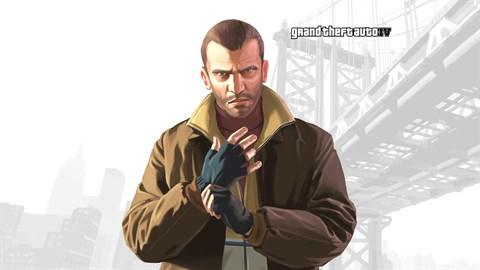
    GTA 4 cheat codes are special phone numbers you dial using Niko Bellic’s in-game cell phone to instantly unlock weapons, restore health, spawn vehicles, and change wanted levels in Grand Theft Auto IV. Unlike older GTA games where you typed button combos blindly, GTA IV introduced a more immersive system — you actually open your phone, go to contacts, and dial a number.

    Released in 2008 and still played by millions on PC via Steam, GTA IV remains one of the most critically acclaimed entries in the series. Its cheat system works on PC, Xbox 360, Xbox One (backward compatible), PS3, and the Complete Edition on PC.

    ⚠️
    Important: Using cheat codes in GTA IV disables Achievements for your current play session. You will need to load a clean save or restart the game to re-enable them. Cheats also do not work in multiplayer.

    How to Enter Cheat Codes in GTA 4

    GTA IV uses an in-game phone system for all cheats on every platform. Here’s how to activate them:

    📱 PC — In-Game Phone (Primary Method)

    Press Up Arrow or Backspace to open Niko’s phone during gameplay. Navigate to Contacts, select the dial pad, and type the phone number. Press Call to activate. A message will confirm the cheat is active.

    💻 PC — Keyboard Shortcut (Alternative)

    On PC you can also use keyboard shortcuts during gameplay without opening the phone. Press the key combination listed for PC in the table below. This is faster but only works on keyboard.

    🎮 Xbox 360 / Xbox One

    Open the in-game phone by pressing Up on the D-pad. Navigate to the keypad and enter the phone number shown. Alternatively, enter the button combination quickly on your controller during gameplay — no pausing required.

    🕹️ PlayStation 3

    Open the phone with Up on the D-pad, then dial the number on the keypad. Or enter the button combo sequence directly during active gameplay using the face buttons and shoulder buttons.

    💡
    Pro Tip: Dialed phone numbers are saved in your Contacts list under the cheat’s name after first use. This makes re-activating cheats much faster — just scroll to the contact and call instead of re-typing the number every time.

    All GTA 4 Cheat Codes — Interactive Table

    Switch between PC, Xbox, and PlayStation using the platform tabs. All phone numbers work on every platform. Click ⎘ Copy to copy any code instantly. Filter by category to find what you need.

    Showing all 26 cheats
    Cheat Phone Number Category

    ⚠️ Cheats disable Achievements for the session. Save your game before activating. Does not work in multiplayer.


    GTA 4 Cheat Codes by Category

    Here’s what each category of GTA IV cheat does:

    ❤️ Health & Weapons Cheats (2 codes)

    The health cheats restore Niko’s health and armor to maximum instantly. The combined health + armor + weapons cheat is one of the most useful in the game — dial 362-555-0100 to get a full loadout along with restored health. These are essential for surviving tough gunfights during missions.

    🔫 Weapons Cheats (2 codes)

    GTA IV has two weapon tier cheats. Tier 1 (486-555-0150) gives you a basic set including a pistol, shotgun, and SMG. Tier 2 (486-555-0100) upgrades you to advanced weapons like an assault rifle, combat sniper, and RPG. Enter the tier 2 cheat multiple times to get extra ammo.

    🚗 Vehicles Cheats (6 codes)

    Vehicle cheats let you instantly spawn cars, motorcycles, a helicopter, and a boat directly in front of you. The Annihilator helicopter (359-555-0100) is the most powerful spawn, giving you an armed military chopper. The Cognoscenti (227-555-0142) and SuperGT (227-555-0168) are great for quick fast travel across Liberty City.

    ⭐ Wanted Level Cheats (2 codes)

    Dial 267-555-0100 to completely remove your wanted level and escape police instantly, or 267-555-0150 to raise it to maximum for a chaotic six-star chase. The clear wanted cheat is especially helpful after completing missions when police are still chasing you.

    🌦️ Weather Cheats (3 codes)

    GTA IV includes three weather cheats: sunny, overcast/cloudy, and stormy. Cycling through weather can dramatically change the atmosphere of Liberty City and affects visibility during missions or exploration.

    🎲 Misc Cheats (11 codes)

    Miscellaneous cheats include map changes, game modifiers, and special toggles like changing the wanted system behavior. Some of these were added in the Episodes from Liberty City DLC (The Lost and Damned / The Ballad of Gay Tony) and only work in those expansions.


    Pro Tips for Using GTA 4 Cheat Codes

    • Save before cheating. Cheats disable Achievements for the entire session. Saving before lets you reload a clean save if needed.
    • Phone contacts save cheats. After dialing a cheat number once, it saves to your Contacts. Scroll to it and press Call to reactivate much faster.
    • Weapon cheats give ammo too. Entering a weapon cheat you already have active will top up your ammo. Useful for extended firefights.
    • Cheats don’t work in multiplayer. GTA IV’s Free Roam and all online modes block cheats entirely.
    • Spawned vehicles despawn if you walk away. Vehicles spawned via cheats will disappear if you move too far from them before getting in.
    • Some cheats are DLC-only. Several misc cheats only work in The Lost and Damned or The Ballad of Gay Tony DLC, not in the base GTA IV campaign.
    • PC players can use keyboard shortcuts. On PC you can enter the full button combo on keyboard instead of opening the phone — it’s faster for commonly used cheats.

    Frequently Asked Questions

    Common questions about GTA IV cheat codes answered:

    Yes. All GTA IV cheat codes work on the PC version available on Steam, including the Complete Edition. On PC, open Niko’s phone using the Up Arrow key, navigate to the dial pad, and enter the phone number. Alternatively, you can enter the keyboard button combinations directly during gameplay without opening the phone. Both methods are confirmed working on the latest PC patch.

    On console, press Up on the D-pad to open Niko’s phone. Then navigate right to the keypad/dial screen and type the cheat number. On PC, press the Up Arrow key or Backspace to open the phone. Go to the dial pad and type the number using your keyboard’s number keys. Press the green call button or Enter to activate the cheat.

    The most common reasons cheats stop working in GTA IV are: (1) you are in a mission or cutscene — most cheats are disabled during active missions; (2) you are trying to use them in multiplayer, which blocks all cheats; (3) on PC, you may have a mod or trainer conflicting with the cheat system. Try loading a clean Story Mode save, exiting any active mission, and entering the cheat from free roam.

    GTA IV is backward compatible on Xbox One and Xbox Series X/S through Microsoft’s backward compatibility program. The cheat codes work exactly the same as on Xbox 360 — use the same button combinations or dial the phone numbers. GTA IV is not officially available on PS4 or PS5 through backward compatibility, as Sony did not include PS3 backward compatibility in those consoles. You would need to play on PS3 for PlayStation cheats.

    There are 26 cheat codes in GTA IV across all categories: 2 health/armor cheats, 2 weapons cheats, 6 vehicle spawn cheats, 2 wanted level cheats, 3 weather cheats, and 11 miscellaneous cheats. Some of the miscellaneous cheats are exclusive to the Episodes from Liberty City DLC — The Lost and Damned and The Ballad of Gay Tony.

    The most useful GTA 4 cheat is 362-555-0100 — it restores full health AND armor AND gives you a weapons loadout in a single dial. For escaping trouble instantly, 267-555-0100 (clear wanted level) is a must-know. For exploration and fun, the Annihilator helicopter cheat (359-555-0100) lets you fly freely above Liberty City with a powerful armed chopper.


    Last updated: May 2026 • All codes verified for GTA IV PC (Steam), Xbox 360, Xbox One (BC) and PS3 • Story Mode only

  • GTA V CHEATS CODES FOR Windows, XBOX, PLAYSTATION, IN-GAME PHONE

    GTA V CHEATS CODES FOR Windows, XBOX, PLAYSTATION, IN-GAME PHONE

    GTA 5 Cheat Codes (2026) — PC, PlayStation, Xbox & Phone

    All 30 working cheat codes for Grand Theft Auto V. Updated for PC, PS4, PS5, Xbox One, Xbox Series X/S and in-game phone. One-click copy included.

    What Are GTA 5 Cheat Codes?

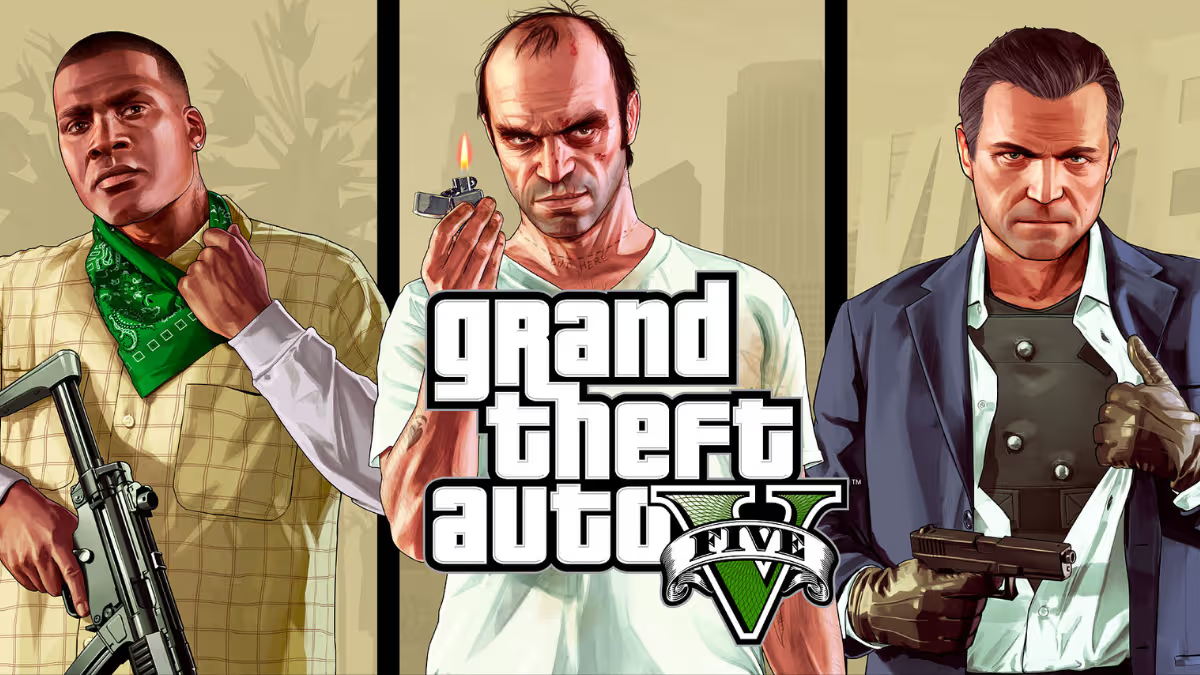
    GTA 5 cheat codes are secret keyboard sequences, button combinations, or in-game phone numbers that instantly unlock special abilities, spawn vehicles, change the weather, and much more in Grand Theft Auto V. First introduced in the original GTA series, cheats have remained one of the most popular features in Rockstar Games titles, giving players a way to have fun outside of the main story.

    Whether you’re playing on PC, PlayStation 4/5, Xbox One/Series X, or using the in-game cell phone, every platform has its own method for activating cheats. This guide covers all 30 currently known and working cheat codes for GTA V in one place.

    ⚠️
    Important: Activating any cheat code in GTA 5 disables Achievements and Trophies for your current play session. Always save your game manually before entering cheats. Cheats do not work in GTA Online.

    How to Enter Cheat Codes in GTA 5

    The method for entering cheat codes depends on your platform. Here’s how to activate them on each:

    💻 PC (Keyboard)

    Press the ~ (tilde) key to open the in-game console, then type the cheat code and press Enter. Codes are not case-sensitive. Example: type PAINKILLER and press Enter to become invincible.

    🎮 PlayStation (PS4 / PS5)

    During gameplay (not paused), quickly enter the button combination shown for PlayStation using your controller’s face buttons (Triangle, Circle, X, Square) and shoulder buttons (L1, L2, R1, R2). Enter them in sequence without pausing between presses.

    🕹️ Xbox (Xbox One / Series X|S)

    Same as PlayStation but using Xbox button names (Y, B, A, X, LB, LT, RB, RT). Enter the full sequence quickly during active gameplay.

    📱 In-Game Phone (All Consoles + PC)

    Open your in-game phone by pressing Up on D-pad (console) or T (PC), go to the Contacts screen, and dial the phone number shown for each cheat. This method works on all platforms and is often the easiest to remember.

    💡
    Pro Tip: On PC, the phone method is often the most reliable. Simply press T, navigate to your phone, and dial. No need to memorize long keyboard sequences.

    All GTA 5 Cheat Codes — Interactive Table

    Use the platform tabs below to switch between PC keyboard codes, PlayStation button combos, Xbox button combos, and in-game phone numbers. Click ⎘ Copy to instantly copy any code to your clipboard. Filter by category to find what you need fast.

    Showing all 30 cheats
    Cheat PC Code Category

    ⚠️ Cheats disable achievements & trophies for the current session. Save your game before activating.


    GTA 5 Cheat Codes by Category

    Here’s a quick overview of what each category of cheat does in GTA V:

    ❤️ Health & Armor Cheats (3 codes)

    These cheats restore your health to maximum, give you full armor, refill your special ability bar, or make you completely invincible for a limited time. PAINKILLER (invincibility) and TURTLE (full health & armor) are the most used cheats in the game, especially useful during tough missions.

    🔫 Weapons Cheats (6 codes)

    Weapon cheats spawn a full set of firearms instantly. TOOLUP gives you a basic loadout while additional codes add explosive rounds, flaming bullets, or explosive melee attacks. The slow-motion aim cheat (DEADEYE) is particularly useful for precision shooting during action sequences.

    🚗 Vehicle Cheats (10 codes)

    GTA 5 includes cheats to spawn 10 different vehicles ranging from sports cars like the Comet and Rapid GT to aircraft like the Buzzard attack helicopter and the Stunt Plane. Vehicle cheats are great for exploring the map quickly or setting up wild stunts.

    🌍 World Cheats (3 codes)

    World cheats let you change the weather on demand, make all vehicles slide on ice (great for chaos), or activate slow-motion mode to turn GTA V into a cinematic action game. The weather cheat cycles through different weather states each time you enter it.

    🏃 Player Cheats (6 codes)

    Player cheats modify your character’s movement and physics. Super jump lets you leap over buildings, moon gravity makes everything float, fast run and fast swim help you traverse the map quickly, and skyfall drops you from the sky.

    ⭐ Police / Wanted Level Cheats (2 codes)

    These two cheats let you instantly raise or lower your wanted level star rating. Lower your wanted level to escape the police instantly, or raise it to trigger a high-speed chase for fun.


    Pro Tips for Using GTA 5 Cheat Codes

    • Save before cheating. Cheats permanently disable achievements/trophies for the session. Saving first lets you reload a clean save if needed.
    • Cheat codes don’t work in GTA Online. They are Story Mode only. Trying to use them online won’t work and may flag your account.
    • Stack cheats carefully. You can have invincibility AND full weapons active at the same time, making missions trivially easy.
    • The weather cheat cycles. Enter MAKEITRAIN (PC) multiple times to cycle through different weather conditions: clear, cloudy, overcast, foggy, rainy, thundery, clearing, snowing.
    • Slow-motion aim stacks 3 times. Enter DEADEYE up to 3 times for increasingly slow bullet-time. Enter a 4th time to deactivate.
    • Phone numbers are easiest to remember. The in-game phone method works on all platforms and doesn’t require memorizing button sequences.
    • Re-enter cheats to deactivate. Invincibility lasts 5 minutes and must be re-entered. Other cheats like slow-motion can be toggled off by entering again.

    Frequently Asked Questions

    Common questions about GTA 5 cheat codes answered:

    Yes. GTA 5 on PS5 and Xbox Series X/S uses the same cheat button combinations as PS4 and Xbox One. The PS5 version uses the same PlayStation button layout (Triangle, Circle, X, Square, L1, L2, R1, R2) and the Xbox Series X version uses the same Xbox layout (Y, B, A, X, LB, LT, RB, RT). The in-game phone number cheats also work identically across all console generations.

    No — cheat codes in GTA 5 Story Mode are an official feature built into the game by Rockstar Games and will not get you banned. However, cheats do NOT work in GTA Online, and attempting to use mods or external cheat tools in GTA Online can result in a ban. Stick to official built-in cheat codes in Story Mode only and you are completely safe.

    On PC, press the ~ (tilde) key during gameplay to open the cheat console. Type the cheat code (e.g., PAINKILLER) and press Enter. The console will close and a notification will confirm the cheat is active. Alternatively, you can open your in-game phone by pressing T and dial the phone number version of the cheat instead.

    Yes, you can complete most story missions with cheats active. However, some missions disable certain cheats while active. The main consequence is that Achievements and Trophies will be disabled for the entire play session once any cheat is used. If you care about 100% completion or trophy hunting, avoid using cheats during those sessions.

    There are 30 official cheat codes in GTA 5 Story Mode. These include 3 health & armor cheats, 6 weapons cheats, 10 vehicle spawn cheats, 3 world cheats, 6 player ability cheats, and 2 wanted level cheats. All 30 are listed in the interactive table above, covering PC keyboard codes, PlayStation button combos, Xbox button combos, and in-game phone numbers.

    No. The PAINKILLER invincibility cheat lasts for exactly 5 minutes in real time. After 5 minutes it automatically deactivates and you will become vulnerable again. You need to re-enter the cheat code to reactivate it. A notification on screen will tell you when invincibility is active.


    Last updated: May 2026 • All codes verified working on PC, PS4, PS5, Xbox One, Xbox Series X/S • GTA V Story Mode only

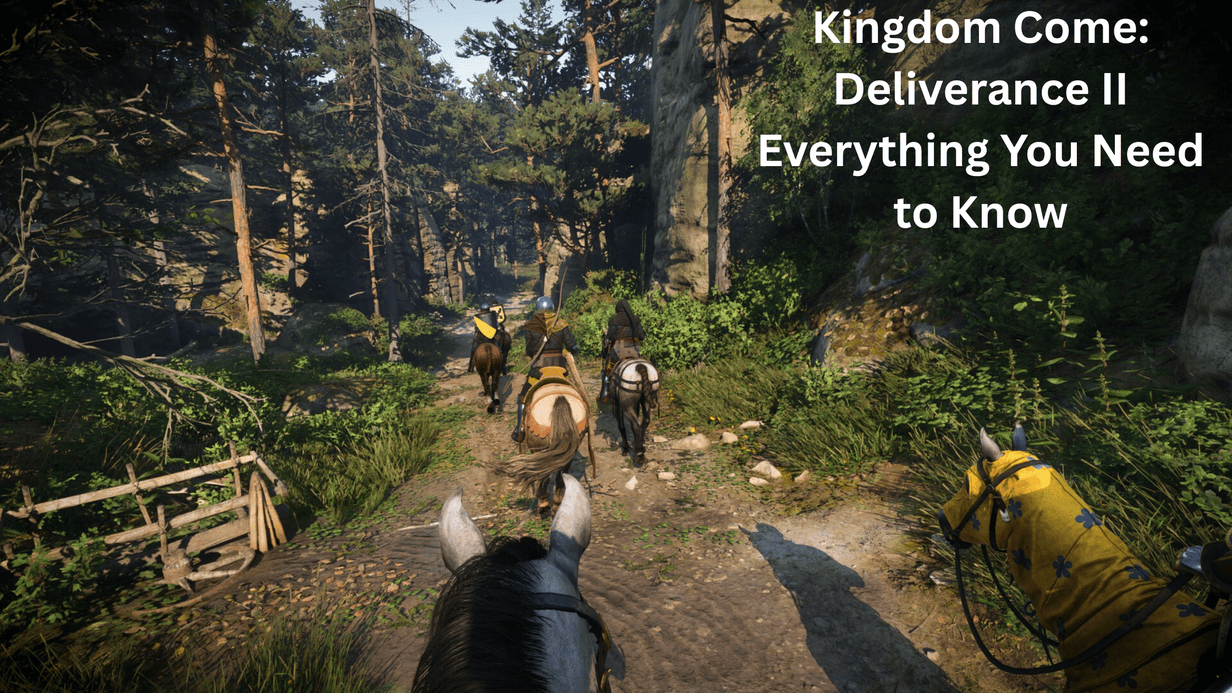
  • Kingdom Come: Deliverance II Everything You Need to Know

    Kingdom Come: Deliverance II Everything You Need to Know

    If you’ve been sleeping on Kingdom Come: Deliverance II, wake up. KCD2 hit over 160,000 concurrent players on launch day and sold one million copies almost immediately and that’s entirely deserved. Developed by Warhorse Studios and published by Deep Silver, it released on February 4, 2025 and hasn’t left the community conversation since.

    What Is Kingdom Come: Deliverance II?

    KCD2 is a first-person medieval RPG set in 15th-century Bohemia and it’s one of the most historically accurate games ever made. You play as Henry, a blacksmith’s son on a quest to avenge his murdered parents his story takes him from aspiring warrior to rebel, crossing paths with a charismatic cast of characters as he faces off against the King of Hungary, Sigismund the Red Fox, and his fearsome allies.

    The story is illustrated with over five hours of stunning cinematics this isn’t a short game. Expect 60–80 hours minimum if you explore properly.

    What Makes It Different From Every Other RPG

    There are no elves, no magic, no fantasy shortcuts just medieval Europe, brutal and real. NPCs follow daily routines that make settlements feel truly lived in, and the attention to realism is second to none whether you’re drinking in a tavern, hunting in the woods, or getting lost in a monastery’s labyrinthine halls.

    Your choices genuinely shape the world around you. Customise Henry’s appearance, skills, and equipment freely while taking a moral stance on the events around you the world of Bohemia remembers your actions forever.

    The Combat Brutal, Satisfying, and Demanding

    Combat in KCD2 is not button-mashing it’s a skill system that punishes impatience. Decision-making plays a huge role players must parry incoming strikes and counter with master strikes, and it can be challenging to master at first.

    The combat looks more gory and brutal than the original every sword fight feels weighty and consequential, which is exactly what the community wanted after the first game. Stick with it through the learning curve it clicks, and when it does it’s one of the most satisfying combat systems in modern RPGs.

    The World Kuttenberg and Beyond

    The map blends a massive city with vast open countryside and both feel equally alive. The open world blends the massive city of Kuttenberg with the vast and wild countryside, with plenty of freedom and exploration and unique activities like blacksmithing and archery let you fully immerse yourself in this vibrant region of Europe.

    The sound design alone is worth talking about. The orchestral score is beautifully composed, adding depth to both grand battles and quiet countryside moments from the clashing of swords to the subtle creaks of wooden tavern doors, the sound design pulls you into the experience completely.

    System Requirements Can Your PC Run It?

    Fair warning this is a demanding game. The minimum specs get you in the door at 1080p/30FPS on lowest settings but the recommended specs jump significantly for a smooth 60FPS experience.

    Here’s the full breakdown:

    ComponentMinimumRecommended (1080p/60FPS Medium)
    OSWindows 10 64-bitWindows 10 64-bit
    CPUIntel i5-8400 / AMD Ryzen 5 2600Intel i5-13600K / AMD Ryzen 5 7600X
    RAM16GB24GB
    GPUGTX 1060 6GB / RX 580RTX 3060 / RX 6600 XT
    Storage100GB SSD100GB SSD
    DirectXDirectX 12DirectX 12

    The minimum specs deliver a stable 30FPS at 1080p on lowest settings playable, but not the experience Warhorse designed. For the real KCD2 experience, you want to hit at least the recommended tier.

    The RAM Surprise Nobody Expected

    24GB RAM at recommended is the number that surprises most players. RAM is vital for smooth gameplay in KCD2 the game needs enough to keep the world running right now as you move through it. It’s an unusual spec most games ask for 16GB and it reflects how densely simulated the world actually is.

    The practical solution is 32GB DDR4 in dual channel it comfortably clears the 24GB bar and gives headroom for Windows and background processes without throttling gameplay.

    Storage SSD Is Non-Negotiable

    Don’t even try to run KCD2 on an HDD. The game demands 100GB of storage on an SSD this isn’t unusual, as most modern games now require an SSD rather than an HDD.

    Kuttenberg’s city streets and the open countryside stream assets constantly as you move an HDD simply can’t feed data fast enough to keep up with the world loading around you. Even a budget SATA SSD is a non-negotiable investment here.

    Is It Worth Playing in 2026?

    Absolutely and the DLC makes it even better. The release of its third DLC, Mysteria Ecclesiae, hasn’t changed its system requirements if you could run the initial game, you’ll have no problem enjoying the whole saga.

    KCD2 is a remarkable sequel that builds upon the ambitious foundations of its predecessor delivering a richer, more immersive medieval RPG with stunning visuals, an engaging story, and an incredible level of detail. It’s one of the few games in 2025–2026 that genuinely rewards patience and curiosity over raw action.

    If you want an RPG that treats you like an adult and doesn’t hold your hand this is the one.